Get Help with Magic Heidi
Fast answers in your language. Support from a Swiss freelancer who gets it.
Whether you're creating your first invoice or managing complex VAT scenarios, find the help you need below. Can't find what you're looking for? Our support team responds to every question—in German, French, Italian, and English.
Contact us directly:
- Phone: +41 78 300 24 77 (7 days a week, 9am-5pm)
- Email: hello@magicheidi.ch
Getting Started
Everything you need to create your first invoice and set up your account.
Getting Started
How do I create my first invoice?
Creating invoices in Magic Heidi takes less than 2 minutes:
- Open the app and tap "+ Invoice"
- Select or add your customer
- Add line items (products or services)
- Tap "Generate Invoice"
Your invoice automatically includes all Swiss legal requirements, including the QR-bill section for easy payment processing.
How do I set up my company information?
Your company details appear on every invoice, so setting them up correctly is essential:
- Go to Settings → Company Information
- Enter your business name, address, and contact details
- Add your IBAN (regular IBAN works—see QR-IBAN question below)
- If you're VAT-registered, add your VAT number here (this automatically enables VAT on invoices)
- Save your changes
These details are stored securely on Swiss servers in Zürich and sync across all your devices.
How do I add my logo to invoices?
Professional invoices include your branding. To add your logo:
Go to Settings -> Customise Invoice. Upload your logo.
How do I import existing customers or products?
Moving from spreadsheets or another tool? We'll handle the migration for you:
Email your customer list and product catalog to hello@magicheidi.ch in any format (Excel, CSV, or even PDF). We'll import everything into your account within 48 hours, ensuring all data is correctly formatted.
This free service is included with all Magic Heidi accounts.
Creating & Managing Invoices
Master Swiss invoicing with QR-bills, VAT rates, and professional delivery options.

Creating & Managing Invoices
How do I add VAT to my invoices?
Switzerland has three VAT rates: 8.1% (standard), 2.6% (reduced for essentials like food), and 3.7% (accommodation).
To enable VAT:
- Go to Settings and find the VAT section
- Enter your Swiss VAT number (UID/TVA number)
- Select between 'Inclusive' (VAT is included in the total price) and 'Additive' (VAT is added on top of the total price) mode.
- Save your settings
Once enabled, you can set VAT rates per line item when creating invoices. The VAT breakdown appears automatically at the bottom of your invoice, meeting Swiss compliance requirements.
Not VAT-registered? Keep VAT disabled. You can register for VAT once your annual turnover exceeds CHF 100,000.
Should I use a QR-IBAN or regular IBAN?
Good news: Magic Heidi works with your regular IBAN. You don't need a QR-IBAN.
Here's why this matters: Some Swiss invoicing tools require a special QR-IBAN from your bank, which can take weeks to obtain and often comes with extra fees. Magic Heidi generates compliant Swiss QR-bills using your standard IBAN.
The technical difference: QR-IBANs are only mandatory when you use QR-reference numbers (27-digit structured references). Magic Heidi uses creditor references instead, which work with regular IBANs and offer the same payment tracking benefits.
Your customers can still scan and pay your invoices instantly—you just skip the QR-IBAN hassle.
How do I add a discount or reduction?
Apply discounts directly on invoices:
Method 1 - Percentage discount: When adding a line item, adjust the unit price to reflect the discount.
Method 2 - Fixed amount reduction: Add a line item called "Discount" or "Réduction" with a negative value. For example, to reduce the total by CHF 100, add a line item with value "-100". The invoice total updates automatically.
Method 3 - Per-item discount: Create the item at full price, then add a second line with the negative discount amount.
How do I add custom text or notes to invoices?
Invoices often need extra information—payment terms, project references, or special instructions.
To add custom text:
- Tap on the invoice date or invoice number
- A menu opens with additional fields
- Find the "Header note" or "Footer note" field
- Enter your text (up to 500 characters)
- This text appears on the printed/PDF invoice
Use this for payment terms ("Net 30"), project codes ("Project: Website Redesign"), or special instructions ("Please reference PO #12345").
How do I create recurring invoices?
Monthly retainers? Subscription services? Set up recurring invoices once, and Magic Heidi handles the rest:
- Create your first invoice as usual
- Open "Edit Invoice" and find the
- Choose frequency (monthly, quarterly, yearly)
- Set the start date and end date (or ongoing)
- Save
Magic Heidi automatically generates and sends invoices on schedule. You'll get a notification each time, so you can review before it's sent if needed.
How do I send invoices to customers?
Three ways to deliver invoices:
Email (most common): Tap "Send" on any invoice, select email, and the invoice sends as PDF with the QR-bill included. Your customer receives it instantly and can pay with a scan.
Print: Tap the download icon to create a PDF for printing. Print on regular A4 paper—the QR-bill section prints correctly at the bottom.
Share: Export invoices as PDF by clicking the 'Share' or 'Download' icon and send through your preferred channel (WhatsApp, messaging apps, or upload to client portals).
All methods include the same legally-compliant Swiss invoice format.
Swiss Compliance &
Legal Requirements
Magic Heidi automatically handles all Swiss invoicing requirements, QR-bills, VAT rates, and legal compliance—so you can focus on your business.
Auto-generated on every invoice
8.1%, 2.6%, and 3.7% support
Legal record retention included
Zürich-based secure storage
Swiss Compliance & Legal Requirements
What are Swiss QR-bills and do I need them?
Since September 2022, QR-bills are mandatory for all Swiss invoices. The old orange and red payment slips no longer work.
Magic Heidi automatically generates Swiss-compliant QR-bills on every invoice. No setup needed—it's built in.
What's a QR-bill? It's the payment section at the bottom of Swiss invoices containing:
- A scannable QR code
- Your IBAN and company details
- The amount due
- Payment reference
Your customers scan this code with their e-banking app and pay in seconds. No manual data entry, no errors, faster payment.
How long must I keep invoices in Switzerland?
Swiss law requires 10-year retention of all business invoices and financial records.
Magic Heidi stores your data securely on Swiss servers (located in Zürich) for as long as you maintain your account. Even if you downgrade to the free plan, your historical data remains accessible.
Best practice: Also export and backup your invoices annually. Go to Reports → Export Data to download everything.
Do I need to register for VAT?
VAT registration is mandatory when your annual turnover exceeds CHF 100,000.
Below this threshold, VAT registration is optional. Many freelancers choose not to register until necessary—it means simpler accounting and no quarterly VAT returns.
Once registered:
- You charge VAT on invoices (usually 8.1%)
- You can reclaim VAT on business expenses
- You must file quarterly VAT returns with the Swiss Federal Tax Administration
Enable VAT in Magic Heidi by adding your UID number in Settings. The app automatically calculates VAT and generates reports for your quarterly filings.
What must appear on Swiss invoices?
Swiss law requires these elements on every invoice:
- Your company name and address
- Your VAT number (if VAT-registered)
- Customer name and address
- Invoice number (sequential, no gaps)
- Invoice date
- Description of goods/services
- Unit price and quantity
- Total amount due
- Payment terms
- QR-bill section (IBAN, amount, payment reference)
Magic Heidi includes all these automatically. You just add the customer and line items—we handle Swiss compliance.
Banking & Payment Tracking
Import transactions from your e-banking to match payments with invoices. Works with all major Swiss banks.

Banking & Payments
How does bank statement import work?
From your e-banking portal (UBS, BCV, ZKV, ...), export your transactions as a CSV/Excel file.
Then, have the Magic Heidi app open on the Invoices page and simply drag-n-drop the Excel/CSV file from your bank into the interface.
This will review all payments from your file and match them against your open invoices to find out which ones have been paid and will be marked as paid. Supported banks: All major Swiss banks including UBS, Credit Suisse, PostFinance, Raiffeisen, and cantonal banks.
How do I mark an invoice as paid?
Automatic (with bank statement import): When you drop a file into the software, Magic Heidi marks invoices paid when matching bank transactions are found.
Manual (without bank connection):
- Hover over the invoice in the invoice list (on mobile, swipe right).
- Tap "Record Payment"
- You can either simply mark the invoice as paid, or enter a payment date and amount.
- Save
The invoice status changes to "Paid" and moves out of your "Outstanding" list.
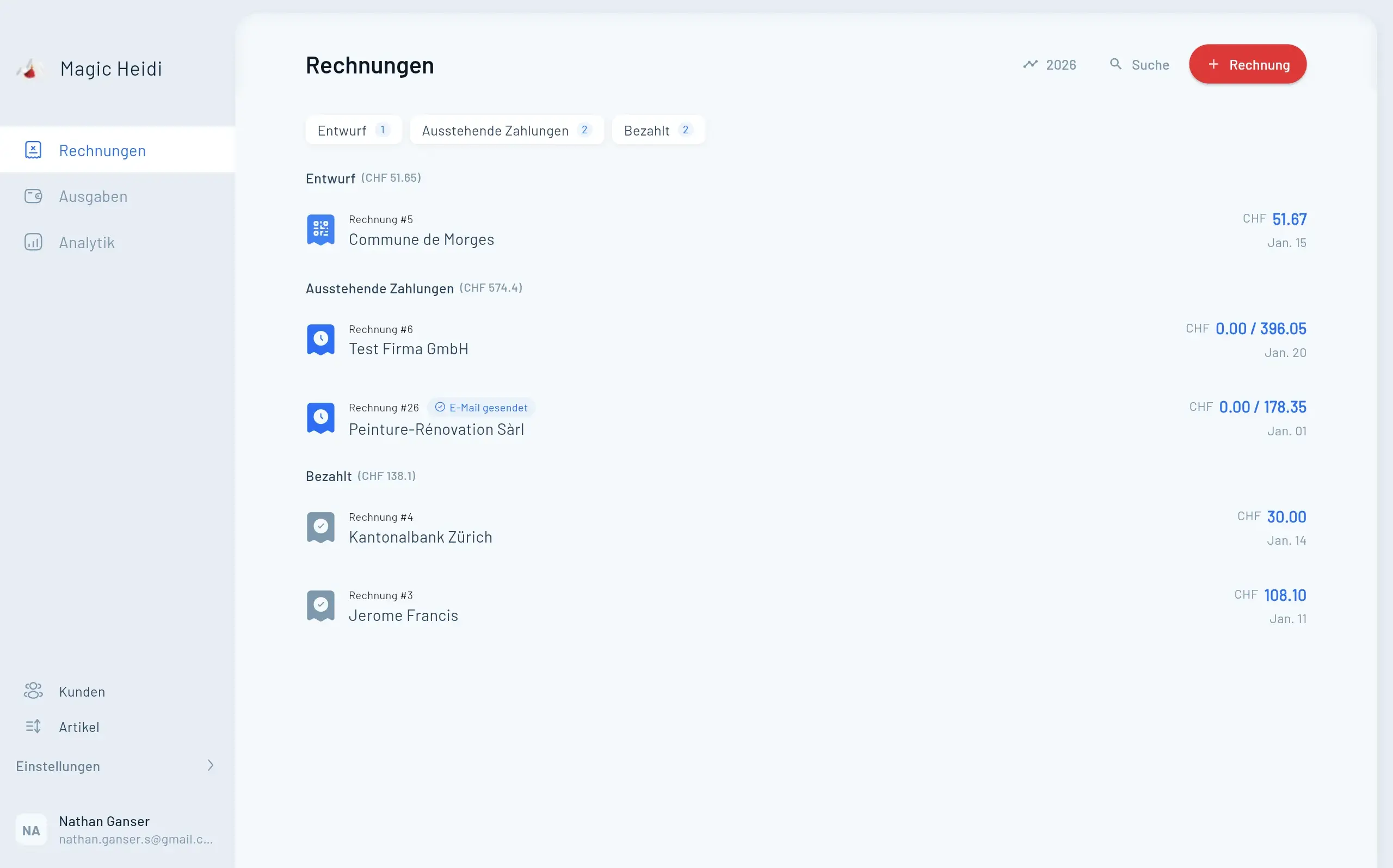
How do I track unpaid invoices?
The Dashboard shows your financial overview at a glance:
- Outstanding amount: Total from unpaid invoices
- Overdue invoices: Highlighted in red when payment date passes
Tap any section to see the full invoice list. Filter by status (unpaid, overdue, paid) or customer.
Can I send payment reminders?
Yes, automated reminders help you get paid faster:
Go to invoice → Generate Reminder → Send to customer
Working Across All Your Devices
Magic Heidi works on more platforms than any Swiss competitor. One account, all devices.
iPhone & iPad
AI-powered expense scanning on the go. Best mobile experience.
Android
Widgets, share integration, and custom notifications.
Mac
Keyboard shortcuts and multi-window workflows.
Windows
Excel integration and taskbar quick actions.
Web Browser
Access from any device with modern browser.
Auto Sync
Changes sync automatically across all devices.
Working Across Devices
Which devices support Magic Heidi?
Magic Heidi works on more platforms than any Swiss competitor:
- iPhone: iOS 14 or newer
- Android: Android 8 or newer
- Mac: macOS 11 (Big Sur) or newer
- Windows: Windows 10 or newer
- Web: Any modern browser
One account, all devices. Your data syncs automatically through Swiss servers.
How do I scan expenses on mobile?
The mobile apps include AI-powered receipt scanning:
- Open Expenses → New Expense
- Tap the camera icon
- Take a photo of your receipt
- AI extracts amount, date, and merchant
- Review and categorize
- Save
Magic Heidi recognizes Swiss receipts in German, French, and Italian. The AI improves with each scan, learning your common vendors and expense categories.
Does Magic Heidi work offline?
Yes, with limitations: You can view existing invoices and clients but cannot create or send invoices while offline.
Requires connection:
- Sending invoices via email
- Bank statement syncing
- Initial app setup
- Exporting reports
The mobile apps cache your recent data for offline access. The desktop and web versions require internet connectivity.
How do I sync data between devices?
Syncing happens automatically—no setup required:
- Make changes on any device
- Data uploads to Swiss servers
- Other devices download updates when you open them next
If you don't see some data, simply close and open the app again, this will load the latest changes.
Reports & Data Export
Generate VAT reports, profit & loss statements, and export your complete business data anytime.

Reports & Exports
How do I export my data?
Protect your business records with regular exports:
- Go to Anaytics
- Choose the year from the top right dropdown (2026, 2025, ..)
- Tap Export
This will automatically download an Excel with your books for that year. You will also see a pop up in the bottom right corner that says "Export backup". If you click on this, you'll receive a download link via email within minutes. That zip export includes invoices, expenses, customers, and products—everything you need for accounting or switching software.
Recommended: Export annually for backup, even though Magic Heidi stores data indefinitely.
Can I generate VAT reports?
VAT-registered businesses need quarterly reports for Swiss tax authorities:
- Go to Settings → VAT Declaration
- Select the quarter (Q1, Q2, Q3, Q4)
- Review VAT collected and VAT paid
- Export as PDF or Excel
The report shows:
- Total sales with 8.1%, 2.6%, and 3.7% VAT
- VAT collected from customers
- VAT paid on expenses (if claimed)
- Net VAT owed to tax authorities
Use this report to complete your quarterly VAT return online at the Federal Tax Administration portal.
What financial reports are available?
Magic Heidi generates key business reports:
Profit & Loss: Income minus expenses by month, quarter, or year. See which months are most profitable.
Revenue Report: Track sales trends over time. Compare year-over-year growth.
Expense Report: Where does your money go? Broken down by category (office supplies, travel, equipment, etc.).
Customer Report: Who are your best customers? See total revenue per client.
Outstanding Invoices: Cash flow report showing unpaid invoices by age (current, 30 days, 60 days, 90+ days).
All those reports are available within the app, either in the Analytics section or Invoices list.
Your Data is Safe
Bank-grade security. Swiss data protection laws. Your data never leaves Switzerland.
Swiss Data Storage
Servers exclusively in Zürich. Subject to strict Swiss privacy laws.
Bank-Grade Encryption
TLS 1.3 in transit. AES-256 at rest. Your data is always encrypted.
FADP Compliant
Fully compliant with Swiss Federal Act on Data Protection.
Daily Backups
Automated backups ensure data recovery in any scenario.
No Data Mining
We never sell or share your data. You own your information.
Access Controls
Add team members with specific permission levels.
Account & Settings
How do I change my language?
Magic Heidi is fully available in four Swiss languages + ES / PT:
- Go to the Settings app of your device (not in Magic Heidi, in the iPhone settings app)
- Find Magic Heidi and then -> Language. Choose Deutsch, Français, Italiano, or English
- The entire interface updates immediately
Your invoices can be in a different language than your interface. Set invoice language in the 'Edit Invoice' section, perfect for businesses with international clients.
Is my data secure?
Your financial data is sensitive. Here's how Magic Heidi protects it:
Swiss data storage: All data stored exclusively on servers in Zürich, subject to strict Swiss privacy laws. Your data never leaves Switzerland.
Encryption: Bank-grade encryption in transit (TLS 1.3) and at rest (AES-256).
Access controls: You control who can access your account. Add team members with specific permission levels.
Regular backups: Automated daily backups ensure data recovery in any scenario.
No data mining: We never sell or share your data. Ever. You own your business information.
Compliance: Fully compliant with Swiss Federal Act on Data Protection (FADP).
What happens to my data if I cancel?
You maintain full access to your data:
- Free plan: Keep unlimited historical access. View and export all invoices and reports indefinitely.
- Canceling completely: Export all data before closing your account. We provide export tools in Settings.
- Data deletion: Request complete data deletion by emailing hello@magicheidi.ch. We permanently delete all records within 30 days.
We believe your business data belongs to you—always.
How do I add team members or my accountant?
Growing businesses often need multiple users:
- Go to Settings → Team
- Tap "Invite User"
- Enter their email and set permissions
- They receive an invitation email
Permission levels:
- View Only: Perfect for accountants who need to see records but not make changes
- Standard: Create invoices and expenses, but can't change settings
- Admin: Full access to everything
Each team member gets their own login. Track who created which invoices for accountability.
Common Issues & Solutions
The app won't open or I can't log in
First, try these quick fixes: 1. Update the app from App Store or Google Play 2. Check your internet connection 3. Reset password using "Forgot Password" 4. Clear cache by deleting and reinstalling (your data is safe in the cloud) Still having issues? Check if your device meets minimum requirements (iOS 14+, Android 8+), try logging in via web browser at app.magicheidi.ch, or contact support with your device model and error message.
My invoices aren't syncing
If you create an invoice on one device but don't see it on another: 1. Check the sync icon (cloud symbol in top menu) 2. Refresh manually: pull down (mobile) or reload page (web) 3. Verify internet connection 4. Wait 30 seconds for large syncs to complete 5. Force sync: Settings → Sync Now If sync is stuck: log out and back in, check for app updates, or contact support if the issue persists beyond 5 minutes.
I can't find my invoices
Invoices don't disappear, but filters might hide them: 1. Check active filters at top of invoice list 2. Clear all filters by tapping "Clear" or "Show All" 3. Search by customer name or invoice number 4. Check date range and extend to "All Time" 5. Look in Archive (Settings → Archive)
An invoice won't send via email
Email delivery issues are usually quick to fix: 1. Verify customer email address in their profile 2. Check your email settings (Settings → Email Configuration) 3. Try sending from web version 4. Download as PDF and send through your own email 5. Ask your customer to check spam folder Pro tip: Send a test invoice to yourself first to verify email functionality.
I made a mistake on a sent invoice
For small errors (typos in description): If the invoice hasn't been paid yet, you can edit minor details. Open invoice → Edit → Make changes → Save. Resend to customer with a note about the correction. For amount changes or legal details: Don't edit sent invoices with financial changes. Instead: 1. Mark the original invoice as "Canceled" 2. Create a new invoice with correct information 3. Use the same invoice number with "A" suffix (e.g., 2024-001A) 4. Send to customer with explanation This maintains proper audit trail required by Swiss law.
Simple Pricing. No Surprises.
One plan. All features. Cancel anytime.
Free Trial
- 3 invoices per month
- Unlimited customers
- Unlimited products/services
- Swiss QR-bill generation
- 10 expenses per month
- Email support
Pro Annual
- Unlimited invoices
- Unlimited expenses
- AI expense scanning
- Bank account connection
- Recurring invoices
- Team members
- Advanced reports
- Priority support
- All future features
Pro Monthly
- Unlimited invoices
- Unlimited expenses
- AI expense scanning
- Bank account connection
- Recurring invoices
- Team members
- Advanced reports
- Priority support
- All future features
Still Need Help?
We're here to help. Magic Heidi is built by a Swiss freelancer who personally understands your challenges.
Contact Us
Get help in your language: Support in Deutsch, Français, Italiano, or English
Phone: +41 78 300 24 77 (7 days a week, 9am-5pm)
Email: hello@magicheidi.ch
Response time: We respond to every email within 24 hours (usually much faster)
What to include in your message:
- Brief description of your issue
- Device and app version you're using
- Screenshots if relevant
- What you've already tried
We're committed to legendary support—because your success is our success.
Your data stays in Switzerland. Built by a Swiss freelancer, for Swiss freelancers. Support in DE, FR, IT, and EN.
Related Guides & Resources
Business Administration
- Understanding Accounting Documents
- How Much Can You Bill Without Being Self-Employed?
- Phone Subscription Tips for Self-Employed
- Writing a Leave Letter
Work-Life Balance
- Swiss Freelancer Work Breaks Guide
- Best Complementary Insurance for Osteopathy
- Mastering the 13th Month Salary
Business Structure
- Sole Proprietorship vs LLC (Sàrl)
- Swiss Commercial Register Guide
- Understanding AHV/AVS Compensation Fund
More Resources