 Magic Heidi
 Jahresabschluss als Freelancer – Schritt-für-Schritt
Das Jahr ist vorbei, die Steuererklärung steht an – und Sie fragen sich, wie Sie Ihre Buchhaltung sauber abschliessen können? In drei klaren Schritten zeigen wir Ihnen, wie Sie Ihren Jahresabschluss in Magic Heidi vorbereiten.
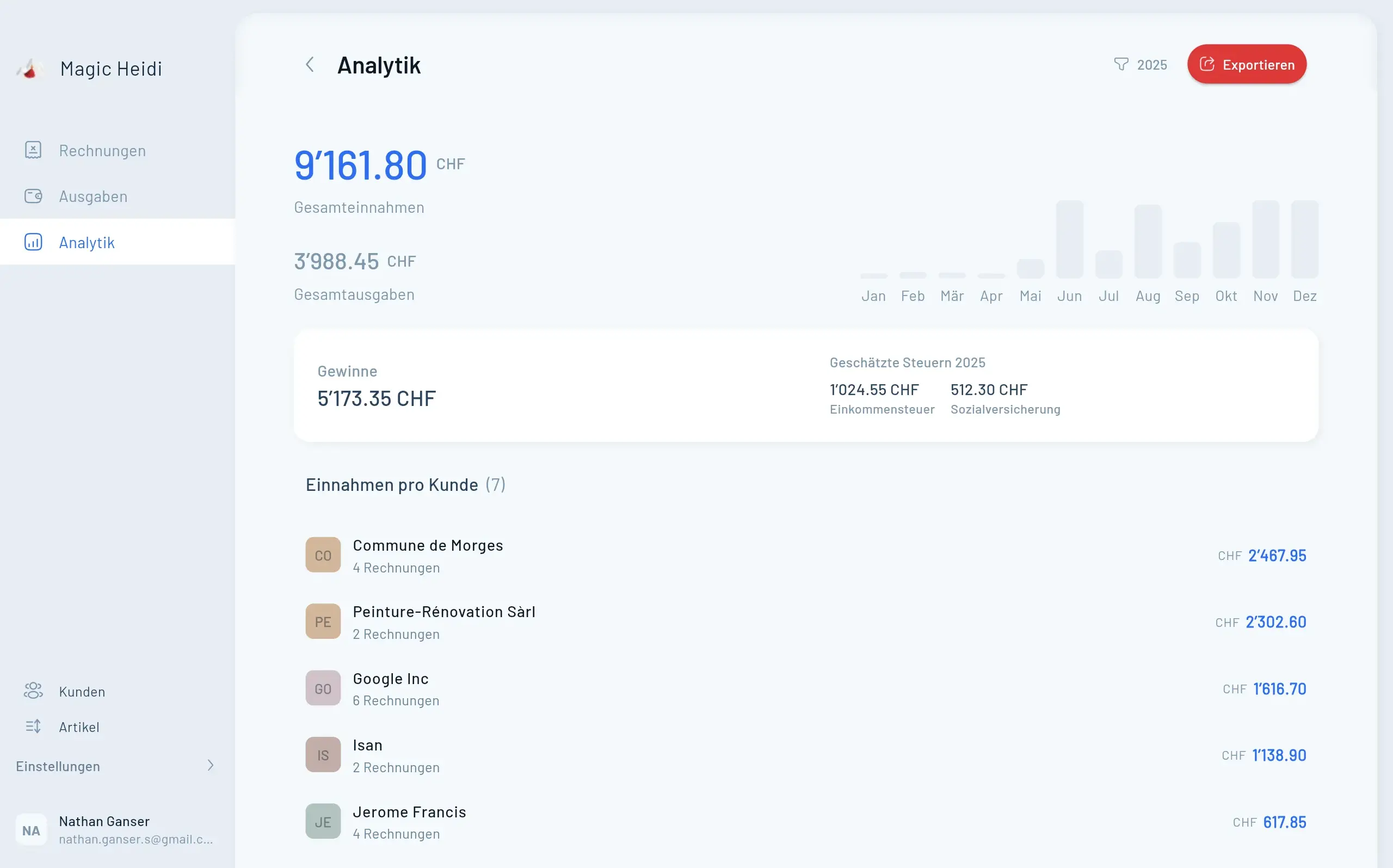
In dieser Anleitung zeigen wir Ihnen in drei klaren Schritten, wie Sie Ihren Jahresabschluss in Magic Heidi vorbereiten – von der Kontrolle Ihrer Rechnungen über die Überprüfung der Ausgaben bis hin zum Export der Daten für die Steuererklärung. Am Ende haben Sie eine vollständige Excel-Datei in der Hand, die alle Informationen enthält, die Sie für Ihre Steuererklärung benötigen.
Drei Schritte zum fertigen Jahresabschluss
Wenn Sie Magic Heidi das ganze Jahr über für Ihre Rechnungen und Ausgaben genutzt haben, ist der Jahresabschluss unkomplizierter, als Sie denken.
- Rechnungen prüfen – Alle bezahlten Rechnungen kontrollieren und den Status offener Rechnungen klären.
- Ausgaben kontrollieren – Ausgaben mit Bankauszügen abgleichen und fehlende Posten ergänzen.
- Daten exportieren – Excel-Export erstellen und optional ein vollständiges Backup aller Belege sichern.
Schritt 1: Rechnungen des vergangenen Jahres überprüfen
Der erste Schritt besteht darin, sich einen Überblick über alle Rechnungen des abgeschlossenen Geschäftsjahres zu verschaffen. Öffnen Sie dazu die Rechnungsübersicht in Magic Heidi und filtern Sie nach dem entsprechenden Jahr.
Sie finden Ihre Rechnungen in drei Zuständen:
- Bezahlte Rechnungen – Alle Rechnungen, die von Ihren Kundinnen und Kunden vollständig beglichen wurden. Diese bilden die Grundlage Ihres Jahresabschlusses.
- Offene Rechnungen – Rechnungen, bei denen Sie noch auf eine Zahlung warten. Hier stellt sich die Frage, ob die Zahlung erst im neuen Jahr eingegangen ist.
- Unbezahlte Rechnungen – Rechnungen, die nie bezahlt wurden – etwa weil ein Auftrag storniert wurde oder ein Kunde nicht gezahlt hat.
Soll- oder Ist-Versteuerung? Die richtige Methode wählen
Bei Rechnungen, die erst im neuen Jahr bezahlt wurden, müssen Sie eine wichtige Entscheidung treffen. Für die meisten Freelancer und Einzelunternehmen in der Schweiz ist das Ist-Prinzip die gängige und einfachere Methode – es zählt der Zeitpunkt, an dem das Geld tatsächlich auf Ihrem Konto eingeht.
Ist-Prinzip (Vereinnahmung)
Die Rechnung zählt in dem Jahr, in dem sie bezahlt wurde. Empfohlen für die meisten Freelancer in der Schweiz.
- Einfachere Methode
- Es zählt der tatsächliche Zahlungseingang
- Dezember-Rechnung, Januar-Zahlung = neues Jahr
- Gängig für Einzelunternehmen
Soll-Prinzip (Fakturierung)
Die Rechnung zählt in dem Jahr, in dem sie gestellt wurde – unabhängig vom Zahlungszeitpunkt.
- Basiert auf Rechnungsdatum
- Unabhängig vom Zahlungseingang
- Eher für grössere Unternehmen
- Komplexere Buchführung
Unbezahlte Rechnungen
Rechnungen, die nie bezahlt wurden, können Sie in Magic Heidi stehen lassen oder löschen – beides hat keinen Einfluss auf Ihren Jahresabschluss.
- Werden nicht in die Bilanz aufgenommen
- Können gelöscht oder belassen werden
- Kein Einfluss auf den Abschluss
- Aufräumen für bessere Übersicht
Schritt 2: Ausgaben kontrollieren und vervollständigen
Während die Rechnungsseite meistens gut gepflegt ist, schleichen sich bei den Ausgaben häufiger Lücken ein. Öffnen Sie die Kontoauszüge Ihres Geschäftskontos und gleichen Sie die dort aufgeführten Ausgaben mit den Einträgen in Magic Heidi ab.
Ausgaben Monat für Monat abgleichen
Gehen Sie Ihre Kontoauszüge systematisch durch und nutzen Sie die praktischen Werkzeuge von Magic Heidi, um Lücken zu finden:
- Suchfunktion nutzen – Suchen Sie gezielt nach «Software», «Flug», «Lunch» oder «Büromaterial».
- Kategorien prüfen – Gehen Sie alle Ausgabenkategorien durch – fehlt eine Kategorie komplett?
- Analytics nutzen – Prüfen Sie im Analytics-Bereich, ob für jeden Monat Einträge vorhanden sind.
- Bankauszüge abgleichen – Vergleichen Sie jede geschäftliche Ausgabe mit Ihren Magic Heidi Einträgen.
Regelmässige Einnahmen und Ausgaben überprüfen
Wenn Sie regelmässige Einnahmen haben – etwa monatliche Abrechnungen von Plattformen wie dem App Store, Google Play oder Shopify – können Sie die Vollständigkeit besonders einfach im Analytics-Bereich prüfen. Wählen Sie den Kunden aus und kontrollieren Sie, ob für jeden Monat eine Rechnung vorhanden ist.
Häufig vergessene Ausgaben für Freelancer
Bestimmte Ausgaben werden von Freelancern besonders oft vergessen. Achten Sie darauf, dass Sie folgende Posten berücksichtigt haben:
- Säule 3a – Einzahlungen in die dritte Säule sind steuerlich abzugsfähig.
- Versicherungen – Berufshaftpflicht, Krankentaggeld und andere geschäftsbezogene Versicherungen.
- Homeoffice-Kosten – Anteilige Miete, Strom und Internet bei Arbeit von zu Hause.
- Weiterbildung – Kurse, Fachliteratur und Konferenzen, die beruflich relevant sind.
- Software-Abos – Tools und Dienste, die Sie für Ihre Arbeit nutzen.
- Telefon & Internet – Geschäftliche Nutzung Ihres Mobiltelefons und Internetanschlusses.
Tipp: Wir haben einen ausführlichen Artikel über die wichtigsten Ausgaben verfasst, die Freelancer bei der Steuererklärung nicht vergessen sollten. Es lohnt sich, diesen als Checkliste zu verwenden, bevor Sie den Jahresabschluss finalisieren.
Schritt 3: Daten exportieren für die Steuererklärung
Sobald alle Rechnungen und Ausgaben geprüft und vollständig sind, können Sie Ihre Daten aus Magic Heidi exportieren. Dieser Schritt dauert nur wenige Minuten.
Excel-Export erstellen
Gehen Sie zum Export-Bereich, wählen Sie das Jahr aus und exportieren Sie nur bezahlte Rechnungen.
- Export-Bereich in Magic Heidi öffnen
- Gewünschtes Jahr auswählen (z. B. 2025)
- Nur bezahlte Rechnungen exportieren
- Datei speichern (Desktop oder Steuerdokumente-Ordner)
Vollständiges Backup erstellen (empfohlen)
Sichern Sie alle PDFs, Fotos, Belege und Dokumente des Geschäftsjahres.
- Backup-Option im Export-Bereich anklicken
- Download-Link per E-Mail erhalten
- Alle Dateien herunterladen
- Auf Computer, externem Laufwerk oder Cloud speichern
Tipp: Auch wenn das Backup optional ist, empfehlen wir Ihnen, es zu erstellen. So haben Sie eine vollständige, lokale Kopie aller Belege – nützlich für Revisionen oder falls Sie später etwas nachschlagen müssen. In der Schweiz gilt eine Aufbewahrungspflicht von 10 Jahren für Geschäftsunterlagen.
Die Export-Datei verstehen
Die exportierte Excel-Datei enthält alles, was Sie für Ihre Steuererklärung benötigen.
Übersichtsblatt
Alle wichtigen Kennzahlen auf einen Blick – inklusive Netto-Einkommen und Gewinn (Profit), der für die Steuererklärung relevant ist.
- Gesamtes Einkommen, aufgeschlüsselt nach Kategorien
- Sämtliche Ausgaben, aufgeschlüsselt nach Kategorien
- Mehrwertsteuer-Informationen als Referenz
- Netto-Einkommen, Netto-Ausgaben und Gewinn
Rechnungsdetails
Detaillierte Auflistung aller einzelnen Rechnungen mit direkten Links zu den Originaldokumenten in Magic Heidi.
- Auflistung aller einzelnen Rechnungen
- Direkte Links zu Original-Rechnungsdateien
- Jederzeit Originaldokument einsehen
- Vollständige Transparenz und Nachvollziehbarkeit
Steuererklärung ausfüllen
Übertragen Sie die relevanten Zahlen aus der Excel-Datei direkt in Ihre Steuererklärung.
- Gesamtumsatz aus selbständiger Tätigkeit
- Gesamte geschäftliche Aufwendungen
- Reingewinn (Netto-Profit)
- Steuerbares Einkommen aus Selbständigkeit