 Magic Heidi
 Rechnungen automatisch mit Bankzahlungen abgleichen
Ziehen Sie einfach Ihre Banktransaktionsdatei per Drag & Drop in Magic Heidi — Rechnungen werden sofort und automatisch zugeordnet und als bezahlt markiert.
Das Problem mit dem manuellen Abgleich
Wenn Sie mehr als eine Handvoll Rechnungen pro Monat versenden, kennen Sie das Problem: Ins E-Banking einloggen, Transaktionen durchscrollen, Beträge und Referenznummern abgleichen und jede Rechnung manuell als bezahlt markieren. Das ist mühsam, fehleranfällig und eine enorme Zeitverschwendung.
- Beträge abgleichen — Endlose Banktransaktionen durchscrollen und versuchen, Zahlen zuzuordnen
- Fehleranfälliger Prozess — Manuelle Dateneingabe führt zu Fehlern und übersehenen Zahlungen
- Stunden pro Monat verschwendet — Zeit, die für Administration statt für die eigentliche Arbeit aufgewendet wird, die Sie in Rechnung stellen
Was Sie lernen werden
In diesem Tutorial erfahren Sie genau, wie Sie:
- Ihre Banktransaktionen aus Ihrem E-Banking-Portal exportieren
- Die Transaktionsdatei in Magic Heidi importieren
- Die App automatisch Zahlungen Ihren offenen Rechnungen zuordnen lassen
Der gesamte Vorgang dauert weniger als eine Minute, selbst wenn Sie Dutzende oder Hunderte von Rechnungen abzugleichen haben.
Den Auto-Abgleich verstehen
Magic Heidi verwendet einen dateibasierten Ansatz: Laden Sie einen Transaktionsexport aus Ihrem E-Banking-Portal herunter und importieren Sie diese Datei anschliessend in Magic Heidi. Die App analysiert jede Transaktion und vergleicht sie mit Ihren offenen Rechnungen.
- Datenschutz & Sicherheit — Ihre Bankzugangsdaten verlassen nie Ihre Bank. Magic Heidi fragt nie nach Ihren E-Banking-Logindaten und speichert diese auch nicht.
- Volle Kontrolle — Sie entscheiden genau, wann und welche Daten importiert werden. Nichts geschieht automatisch im Hintergrund ohne Ihr Wissen.
- Universelle Kompatibilität — Funktioniert mit praktisch jeder Schweizer Bank — UBS, PostFinance, Raiffeisen, ZKB und weiteren — die CSV- oder Excel-Dateien exportiert.
- Sofortige Zuordnung — Transaktionen werden anhand von Beträgen, Referenznummern und weiteren identifizierenden Daten mit allen offenen Rechnungen verglichen.
Rechnungen in 3 einfachen Schritten abgleichen
Von Ihrem E-Banking-Portal zu vollständig abgeglichenen Rechnungen in unter einer Minute.
Schritt 1: Aus dem E-Banking exportieren
Loggen Sie sich in Ihr E-Banking-Portal ein, navigieren Sie zu den Kontotransaktionen, wählen Sie einen Zeitraum und laden Sie die Datei als CSV oder Excel herunter.
Schritt 2: Per Drag & Drop in Magic Heidi ziehen
Suchen Sie die heruntergeladene Datei und ziehen Sie sie direkt in das Magic Heidi App-Fenster. Kein spezielles Import-Menü oder Einstellungen nötig.
Schritt 3: Auto-Abgleich in Aktion
Magic Heidi liest jede Transaktion, vergleicht sie mit offenen Rechnungen und markiert Übereinstimmungen automatisch als bezahlt.
Fertig — Ergebnisse überprüfen
Zugeordnete Rechnungen verschwinden in Echtzeit aus Ihrer Liste der offenen Zahlungen. Der gesamte Vorgang dauert nur Sekunden.
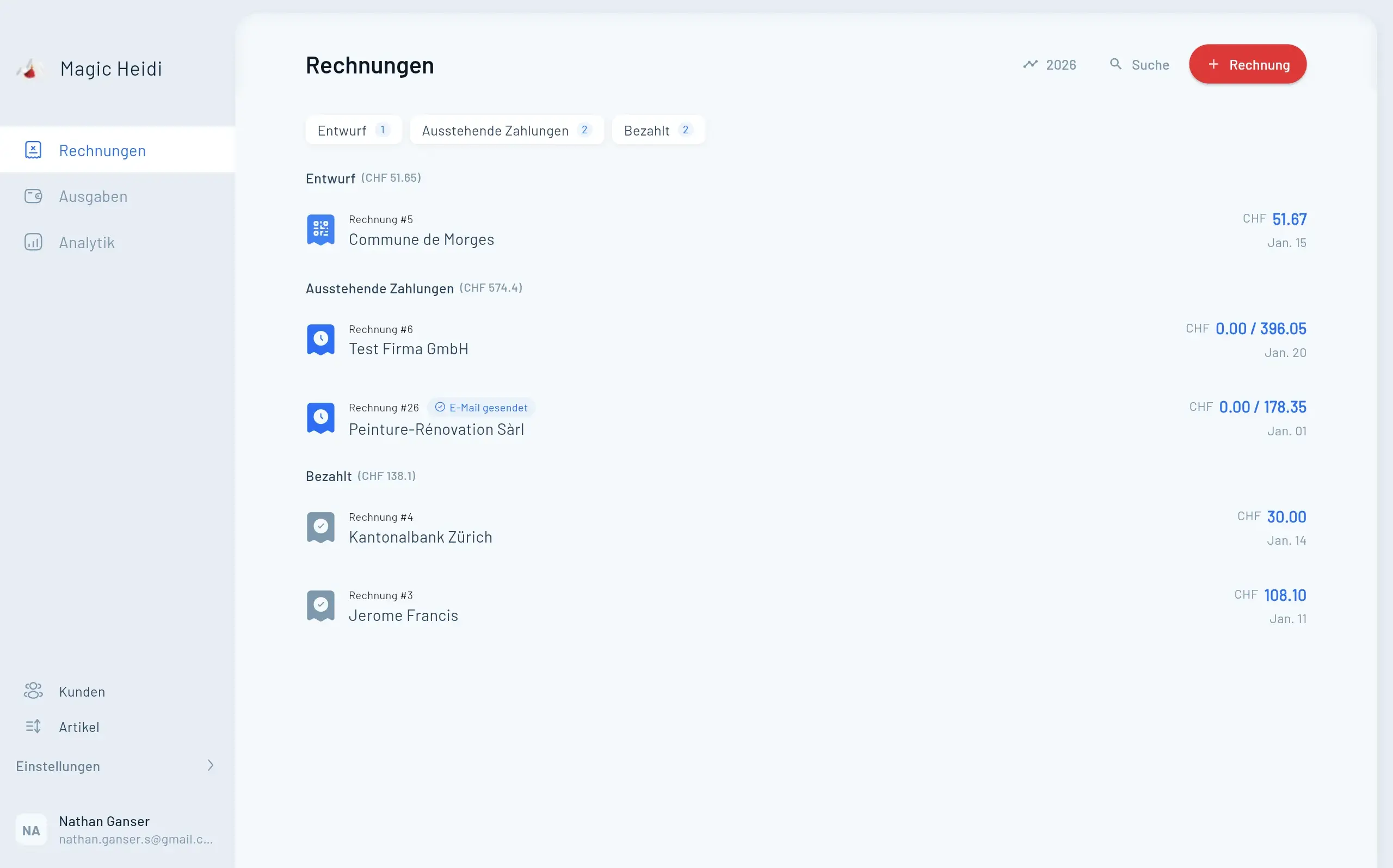
Sobald Sie die Datei ablegen, beginnt Magic Heidi sofort mit der Verarbeitung. Zugeordnete Rechnungen verschwinden in Echtzeit aus Ihrer Liste «Zahlung ausstehend». Im Tutorial-Beispiel warteten zwei Rechnungen auf Zahlung — nach dem Import wurden beide automatisch als bezahlt erkannt und aus der Liste der offenen Rechnungen entfernt.
Funktioniert mit allen grossen Schweizer Banken
Exportieren Sie Transaktionsdateien von Ihrer bevorzugten Bank und importieren Sie diese nahtlos in Magic Heidi.
- UBS — Navigieren Sie zu den Kontotransaktionen und klicken Sie auf die Download-Schaltfläche für CSV oder Excel.
- PostFinance — Verwenden Sie die Option «Export» im Bereich Kontobewegungen. CSV-Exporte funktionieren einwandfrei.
- Raiffeisen — Gehen Sie zur Kontoübersicht, wählen Sie die Transaktionen aus und nutzen Sie die Export-/Download-Funktion.
- ZKB — Transaktionsexporte sind unter den Kontodetails verfügbar. Wählen Sie das CSV-Format für die beste Kompatibilität.
Best Practices
Regelmässig abgleichen
Machen Sie es sich zur Gewohnheit, den Abgleich regelmässig durchzuführen — wöchentlich, zweiwöchentlich oder monatlich. Je häufiger Sie abgleichen, desto einfacher erkennen Sie fehlende Zahlungen frühzeitig.
- Wöchentlicher Abgleich bei hohem Rechnungsvolumen
- Monatlicher Abgleich bei geringerem Aufkommen
- Überfällige Zahlungen schneller erkennen
- Finanzdaten stets aktuell halten
Keine Sorge wegen Duplikaten
Sie können dieselben oder sich überschneidende Transaktionsdateien so oft importieren, wie Sie möchten. Magic Heidi markiert eine bereits abgeglichene Rechnung nicht doppelt.
- Überlappende Zeiträume sicher importieren
- Keine Nachverfolgung importierter Dateien nötig
- Jederzeit ohne Konsequenzen erneut importieren
- Intelligente Duplikaterkennung integriert
Nach dem Import überprüfen
Obwohl der automatische Abgleich sehr zuverlässig ist, sollten Sie immer eine kurze Überprüfung durchführen. Nicht zugeordnete Rechnungen können auf ausstehende Zahlungen, Teilzahlungen oder uneindeutige Transaktionsdaten hinweisen.
- Verbleibende unbezahlte Rechnungen prüfen
- Zahlungen identifizieren, die noch unterwegs sind
- Teil- oder nicht übereinstimmende Beträge erkennen
- Spezialfälle manuell als bezahlt markieren
Zeitersparnis: Warum das für Freelancer wichtig ist
Mit wachsendem Geschäft wird der manuelle Abgleich zum echten Engpass. Mit dem Auto-Abgleich bleibt der Zeitaufwand unabhängig vom Volumen gleich.
| Rechnungsvolumen | Manueller Abgleich | Magic Heidi |
|---|---|---|
| 10 Rechnungen/Monat | 15-20 Minuten | < 1 Minute |
| 50 Rechnungen/Monat | 1+ Stunden, Fehler schleichen sich ein | < 1 Minute |
| 100+ Rechnungen/Monat | Echter Engpass | < 1 Minute |
Finanzielle Übersicht in Echtzeit
Über die Zeitersparnis hinaus bietet Ihnen der automatische Abgleich eine genaue Echtzeit-Übersicht darüber, welche Rechnungen bezahlt wurden und welche noch offen sind. Verfolgen Sie überfällige Zahlungen schneller nach und führen Sie sauberere Finanzdaten mit weniger menschlichen Fehlern.
Kurze Zusammenfassung
Der Abgleich von Rechnungen mit Bankzahlungen muss keine mühsame Aufgabe sein. Hier ist der gesamte Prozess:
- Laden Sie Ihre Transaktionsdatei aus dem E-Banking-Portal Ihrer Bank herunter
- Ziehen Sie die Datei per Drag & Drop in Magic Heidi
- Fertig — Rechnungen werden automatisch zugeordnet und als bezahlt markiert
Es funktioniert mit allen grossen Schweizer Banken, bewältigt jedes Rechnungsvolumen und Sie können den Import so oft durchführen, wie Sie möchten, ohne sich um Duplikate sorgen zu müssen.