 Magic Heidi
 Rechnungen für internationale Kunden erstellen – Schritt für Schritt
So erstellen Sie als Schweizer Freelancer professionelle Rechnungen für Kunden im Ausland – mit korrekter Währung, Bankdaten und automatischer Wechselkursberechnung.
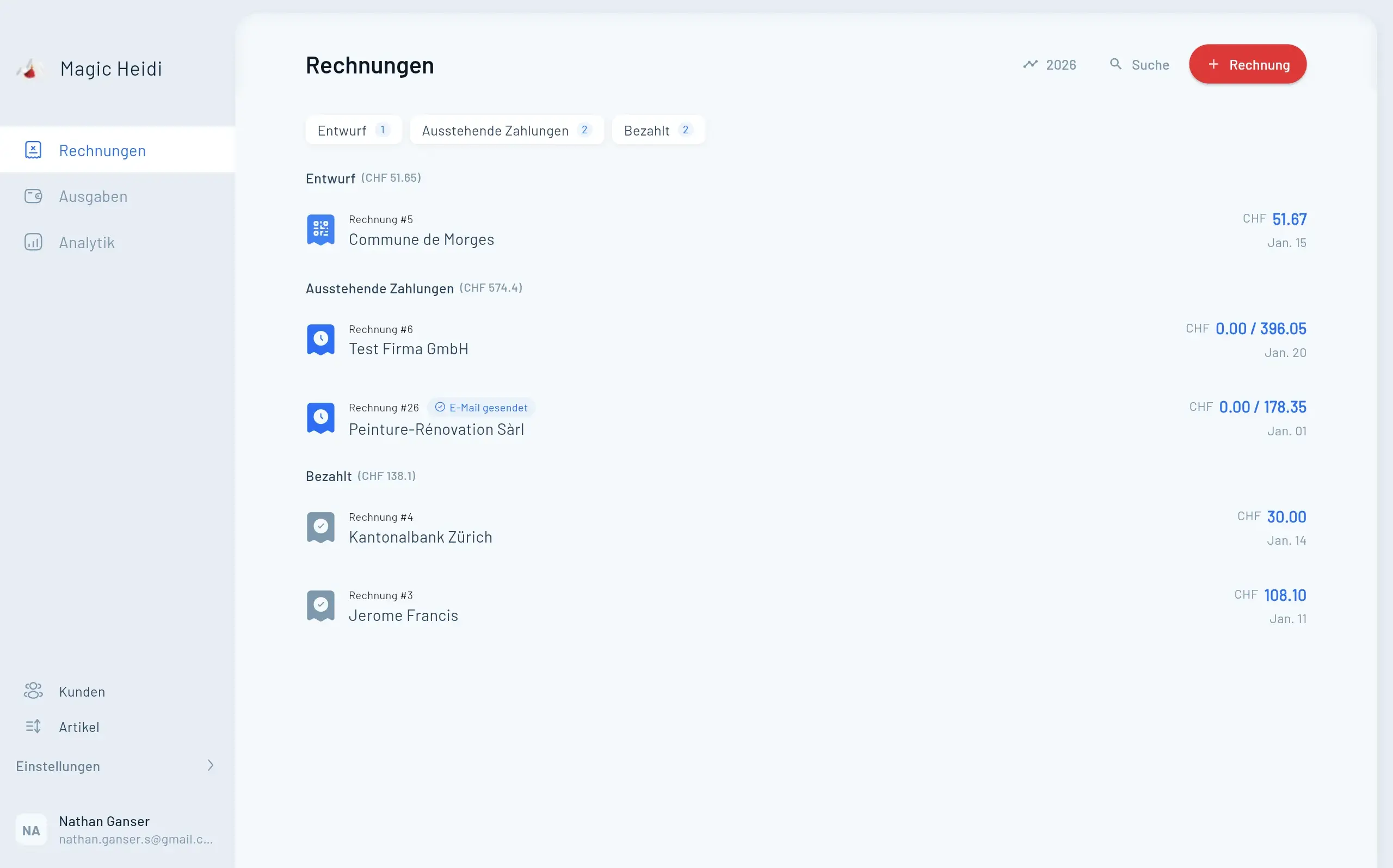
Als Schweizer Freelancer arbeiten Sie nicht nur für Kunden in Bern, Zürich oder Basel. Vielleicht betreuen Sie ein Startup in London, eine Agentur in Berlin oder ein Unternehmen in New York. Doch sobald die Arbeit erledigt ist, stellt sich eine wichtige Frage: Wie erstelle ich eine korrekte Rechnung für einen internationalen Kunden?
Der gewohnte QR-Einzahlungsschein, den Ihre Schweizer Kunden kennen, ist für ausländische Firmen schlicht unbrauchbar. Sie benötigen andere Bankdaten, eine andere Währung und möglicherweise eine andere Rechnungssprache. Klingt kompliziert? Ist es nicht – wenn Sie wissen, wo Sie die richtigen Einstellungen vornehmen.
Was Sie in diesem Artikel lernen
In diesem Tutorial zeigen wir Ihnen Schritt für Schritt, wie Sie mit Magic Heidi professionelle Rechnungen für internationale Kunden erstellen.
Internationale Bankdaten
Bankdaten für Wise, Revolut & Co. hinterlegenKunden korrekt erfassen
Ausländische Kunden mit vollständiger Adresse anlegenWährung & Sprache anpassen
Rechnung in der richtigen Währung und Sprache erstellenAutomatische Wechselkurse
Von der automatischen Wechselkursberechnung profitierenInternationale Bankdaten hinterlegen
Bevor Sie Ihre erste internationale Rechnung erstellen, sollten Sie sich eine grundlegende Frage stellen: Wie soll Ihr Kunde Sie bezahlen?
Grossbritannien
Account Number und Sort Code
EU / SEPA-Raum
IBAN und BIC/SWIFT
USA
Account Number und Routing Number
Schweiz (Standard)
QR-Einzahlungsschein (nur für CH-Kunden)
So richten Sie benutzerdefinierte Bankdaten ein
- Navigieren Sie in Magic Heidi zu Firmendaten.
- Suchen Sie den Bereich Benutzerdefinierte Bankdetails.
- Wählen Sie die gewünschte Währung aus (z. B. GBP, EUR oder USD).
- Geben Sie die entsprechenden Bankdaten ein.
- Klicken Sie auf Speichern.
Tipp: Viele Schweizer Freelancer nutzen Konten bei Wise oder Revolut Business, um internationale Zahlungen günstig und schnell zu empfangen. Diese Anbieter stellen Ihnen lokale Bankdaten in verschiedenen Währungen zur Verfügung – ideal, um Ihren Kunden unnötige Überweisungsgebühren zu ersparen. Tragen Sie einfach die jeweiligen Kontodaten in Magic Heidi ein.
Sie können in Magic Heidi mehrere Bankverbindungen für verschiedene Währungen hinterlegen. So sind Sie für Kunden aus unterschiedlichen Ländern bestens vorbereitet.
Einen internationalen Kunden anlegen
Nachdem Ihre Bankdaten eingerichtet sind, legen Sie den ausländischen Kunden an. Dabei gibt es einige Besonderheiten gegenüber einem Schweizer Kunden zu beachten.

So erfassen Sie einen ausländischen Kunden
- Erstellen Sie einen neuen Kunden in Magic Heidi.
- Geben Sie den Firmennamen ein (z. B. «Google Inc.»).
- Tragen Sie die vollständige Adresse ein, inklusive:
- Strasse und Hausnummer
- Postleitzahl und Stadt
- Land (z. B. «United Kingdom», «Deutschland», «United States»)
- Falls vorhanden, fügen Sie die Mehrwertsteuernummer (VAT Number) oder andere relevante Angaben im entsprechenden Feld hinzu.
- Speichern Sie den Kunden.
Tipp: Achten Sie darauf, das Land immer korrekt anzugeben. Es erscheint auf der Rechnung und sorgt dafür, dass Ihre Rechnung professionell und vollständig aussieht. Gerade bei internationalen Geschäftsbeziehungen ist eine saubere Adressangabe ein Zeichen von Seriosität.
Mehrwertsteuer korrekt handhaben
Ein wichtiger Punkt bei internationalen Rechnungen ist die Mehrwertsteuer (MWST). In der Regel gilt: Wenn Sie als Schweizer Freelancer Dienstleistungen an ein Unternehmen im Ausland erbringen, ist keine Schweizer Mehrwertsteuer geschuldet.
So setzen Sie die Mehrwertsteuer auf 0 %
Wenn Sie in Magic Heidi die Mehrwertsteuer aktiviert haben, gehen Sie wie folgt vor:
- Fügen Sie einen Artikel zu Ihrer Rechnung hinzu (z. B. «Consulting»).
- Setzen Sie den Mehrwertsteuersatz auf 0 %.
Falls Sie die Mehrwertsteuer in Ihrem Account gar nicht aktiviert haben, entfällt dieser Schritt – die Rechnung wird automatisch ohne MWST erstellt.
Wichtiger Hinweis: Die steuerlichen Regelungen für internationale Dienstleistungen können komplex sein. Es empfiehlt sich, im Zweifelsfall eine Steuerberatung in Anspruch zu nehmen. Falls Sie eine Begründung angeben möchten, warum keine Mehrwertsteuer berechnet wird (z. B. «Reverse Charge» oder «Leistungsort im Ausland»), können Sie diese Information in den Fussnotizen der Rechnung einfügen.
Währung und Sprache
der Rechnung anpassen
Ihr Kunde in London möchte vermutlich nicht in Schweizer Franken bezahlen – und eine Rechnung auf Deutsch nützt ihm wenig. Magic Heidi ermöglicht es Ihnen, beides unkompliziert anzupassen.
Währung ändern
Passen Sie die Währung direkt im Bearbeitungsmodus der Rechnung an.
- Rechnung öffnen und auf Bearbeiten klicken
- Währung auf die gewünschte Landeswährung ändern
- British Pounds, Euro, US Dollar und mehr verfügbar
- Speichern – fertig!
Sprache ändern
Die gesamte Rechnung wird in der gewählten Sprache generiert – inklusive aller Bezeichnungen.
- Im Bearbeitungsfenster Sprache auswählen
- Englisch, Deutsch, Französisch und mehr
- Alle Rechnungslabels werden übersetzt
- Professioneller Eindruck bei internationalen Kunden
Einstellungen pro Kunde
Magic Heidi merkt sich die Einstellungen pro Kunde – Sie müssen sie nur einmal vornehmen.
- Währung wird automatisch übernommen
- Sprache wird automatisch übernommen
- Neue Rechnungen an denselben Kunden sind sofort korrekt
- Zeitersparnis bei wiederkehrenden Kunden
Zusätzliche Informationen und Fussnotizen
Internationale Rechnungen erfordern manchmal zusätzliche Angaben, die auf einer Schweizer Standardrechnung nicht nötig wären. Magic Heidi bietet Ihnen dafür flexible Möglichkeiten.
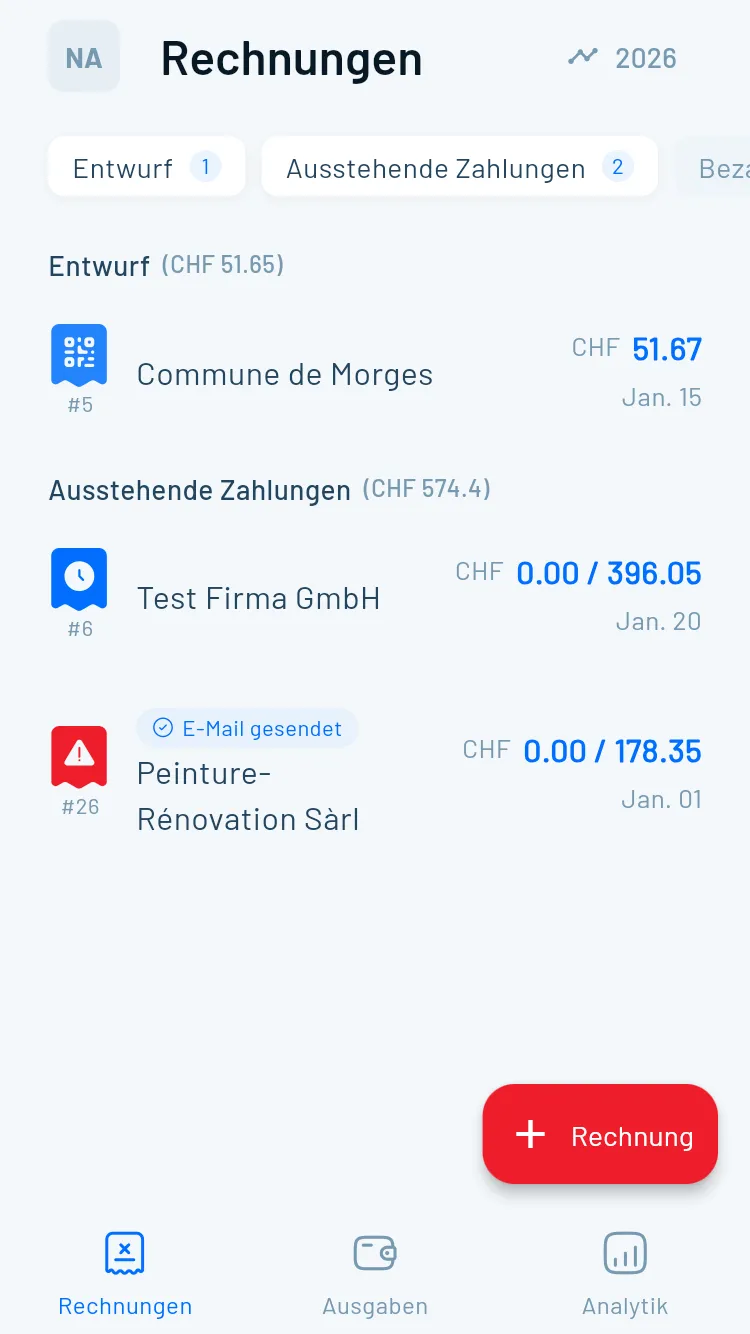
Was Sie in den Fussnotizen angeben können
- Steuerliche Hinweise: z. B. «VAT reverse charge applies» oder «Dienstleistung gemäss Art. 8 Abs. 1 MWSTG nicht steuerbar in der Schweiz»
- Zahlungsbedingungen: z. B. «Payment due within 30 days» oder spezielle Vereinbarungen
- Bankgebühren: Hinweis, wer allfällige Überweisungsgebühren trägt
- Weitere Referenzen: Projektnummern, Bestellnummern (Purchase Order) oder Vertragsreferenzen
So fügen Sie Fussnotizen hinzu:
- Öffnen Sie die Rechnung im Bearbeitungsmodus.
- Tragen Sie Ihre Zusatzinformationen im Feld Fussnotizen ein.
- Speichern Sie die Rechnung.
Rechnung generieren und versenden
Nun ist alles bereit. Zeit, die Rechnung zu erstellen und an Ihren internationalen Kunden zu schicken.
- Klicken Sie auf Rechnung generieren.
- Prüfen Sie die Vorschau: Statt des QR-Einzahlungsscheins sehen Sie nun die internationalen Bankdaten, die Sie in Schritt 1 hinterlegt haben.
- Kontrollieren Sie die Adresse, Währung, Sprache und alle weiteren Angaben.
- Laden Sie die Rechnung als PDF herunter oder versenden Sie sie direkt über die App an Ihren Kunden.
Die Rechnung erscheint nun in Ihrem Dashboard mit dem korrekten Betrag in der Fremdwährung.
Automatische Wechselkursberechnung beim Zahlungseingang
Ein besonders praktisches Feature von Magic Heidi kommt zum Tragen, sobald Sie die Rechnung als bezahlt markieren: die automatische Wechselkursberechnung.
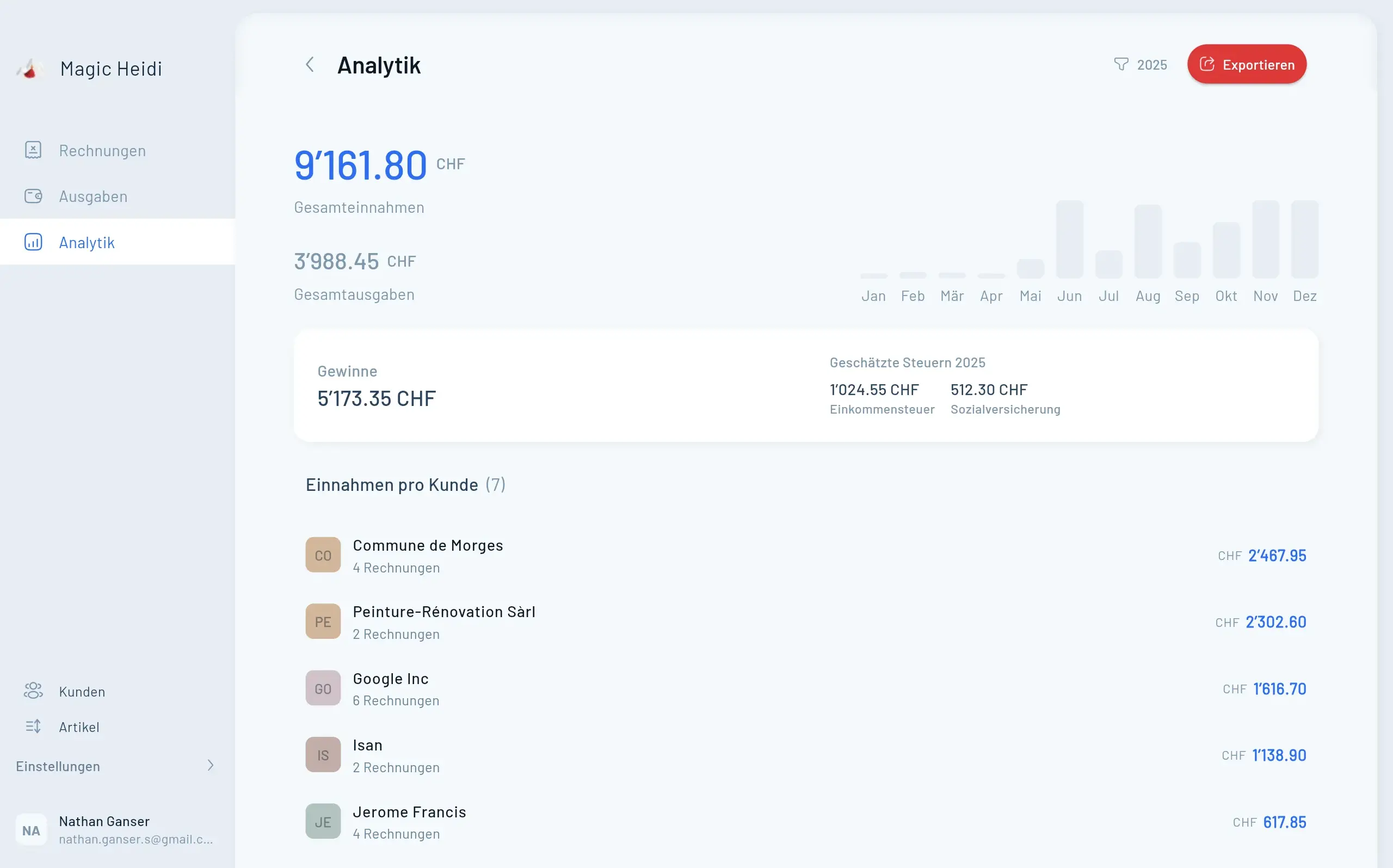
So funktioniert es
Stellen Sie sich folgendes Szenario vor:
- Ihre bisherigen Einnahmen betragen CHF 2'000.
- Sie markieren eine Rechnung über GBP 1'000 als bezahlt.
- Magic Heidi ermittelt automatisch den Wechselkurs zum Zahlungsdatum.
- In unserem Beispiel entsprechen GBP 1'000 etwa CHF 1'040.
- Ihre Gesamteinnahmen im Dashboard werden nun mit CHF 3'040 angezeigt – nicht einfach CHF 3'000.
Das bedeutet: Sie haben jederzeit einen realistischen Überblick über Ihre tatsächlichen Einnahmen in Schweizer Franken, auch wenn ein Teil Ihrer Kunden in Fremdwährungen bezahlt.
Tipp: Dieser automatische Wechselkurs ist besonders wertvoll für Ihre Buchhaltung und Steuererklärung, da die Schweizer Steuerbehörden Einnahmen in CHF erwarten. Sie sparen sich das manuelle Nachschlagen und Umrechnen von Kursen.
Zusammenfassung: Internationale Rechnungen
Hier noch einmal die wichtigsten Schritte im Überblick – damit Sie nichts vergessen.
- 🏦Bankdaten einrichten
Internationale Kontodaten (z. B. von Wise oder Revolut) unter «Firmendaten» hinterlegen
- 👤Kunden anlegen
Vollständige Adresse inklusive Land erfassen
- 📋MWST prüfen
MWST-Satz auf 0 % setzen, falls zutreffend
- 💱Währung anpassen
Die passende Fremdwährung auswählen
- 🌐Sprache ändern
Rechnungssprache an den Kunden anpassen (z. B. Englisch)
- 📝Fussnotizen ergänzen
Steuerhinweise und Zahlungsbedingungen hinzufügen
- 📤Rechnung versenden
PDF herunterladen oder direkt über die App senden
- 📊Zahlung erfassen
Von der automatischen Wechselkursberechnung profitieren
- Rechnung #3
Magic Heidi
CHF 500
Jan 29
- Rechnung #2
Webbiger LTD
CHF 2000
Jan 24
- Rechnung #1
John Doe
CHF 600
Jan 20
Häufig gestellte Fragen
Kann ich mehrere Bankverbindungen für verschiedene Währungen hinterlegen?
Ja, Magic Heidi unterstützt mehrere Bankverbindungen für verschiedene Währungen. Sie können z. B. ein GBP-Konto bei Wise, ein EUR-Konto bei Revolut und Ihr reguläres CHF-Konto hinterlegen. Die passenden Bankdaten erscheinen automatisch auf der Rechnung, je nach gewählter Währung.
Muss ich bei internationalen Rechnungen Mehrwertsteuer berechnen?
In der Regel gilt: Wenn Sie als Schweizer Freelancer Dienstleistungen an ein Unternehmen im Ausland erbringen, ist keine Schweizer Mehrwertsteuer geschuldet. Setzen Sie den MWST-Satz in Magic Heidi einfach auf 0 %. Bei Unsicherheiten empfehlen wir, eine Steuerberatung in Anspruch zu nehmen.
Wie funktioniert die automatische Wechselkursberechnung?
Wenn Sie eine Rechnung in Fremdwährung als bezahlt markieren, ermittelt Magic Heidi automatisch den Wechselkurs zum Zahlungsdatum und rechnet den Betrag in CHF um. So haben Sie jederzeit einen realistischen Überblick über Ihre Einnahmen in Schweizer Franken.
Werden die Einstellungen für internationale Kunden gespeichert?
Ja, Magic Heidi merkt sich die Währung und Sprache pro Kunde. Wenn Sie für denselben Kunden eine neue Rechnung erstellen, werden diese Einstellungen automatisch übernommen.
Welche Zahlungsdienstleister eignen sich für internationale Zahlungen?
Viele Schweizer Freelancer nutzen Wise oder Revolut Business, um internationale Zahlungen günstig und schnell zu empfangen. Diese Anbieter stellen lokale Bankdaten in verschiedenen Währungen zur Verfügung, was Ihren Kunden unnötige Überweisungsgebühren erspart.
Erstellen Sie jetzt Ihre erste internationale Rechnung
Ob Ihr Kunde in London, Berlin oder New York sitzt – mit Magic Heidi sind Sie bestens vorbereitet. Testen Sie die App kostenlos und überzeugen Sie sich selbst.