Quick Start Guide

Your First Swiss Invoice Step by Step

Set up your business details, select a customer and items, then review the invoice and create the PDF. Allow enough time for initial setup and checks.

Magic Heidi Mobile Invoicing

If you're a Swiss freelancer or self-employed professional, you know invoicing isn't simple. QR codes, VAT rates, structured addresses, sequential numberingโ€”and that's before you even send your first invoice.

Magic Heidi brings invoices, customer data and line items into one workflow. You still need to check each invoice before sending.

This guide covers the workflow through to the PDF. Features were reviewed in the local app source, not a logged-in production account. Menu positions can vary by platform and version. Tax validation and faster payment are not guaranteed.

What You'll Need Before You Start

Before creating your first invoice, gather these essential details. Don't worryโ€”you'll only need to enter most of this information once.

๐Ÿข

Your Business Info

Legal name, address, phone, email, VAT number (if registered), and IBAN
๐Ÿ‘ค

Client Details

Client name, complete address in structured format, and email for delivery
๐Ÿ“

Service Information

Description, date of service, price per item or hourly rate, and quantities

Quick VAT check: Configure VAT according to your actual registration and services. Voluntary registration is possible below the general turnover threshold; the app does not determine your tax liability. Check your situation with the FTA.

Step-by-Step Process

Creating Your Invoice: 7 Simple Steps

Enter business details, customers and line items in this workflow. Check addresses, tax treatment, bank details and the finished PDF before sending.

Step 1

Access Invoice Creation

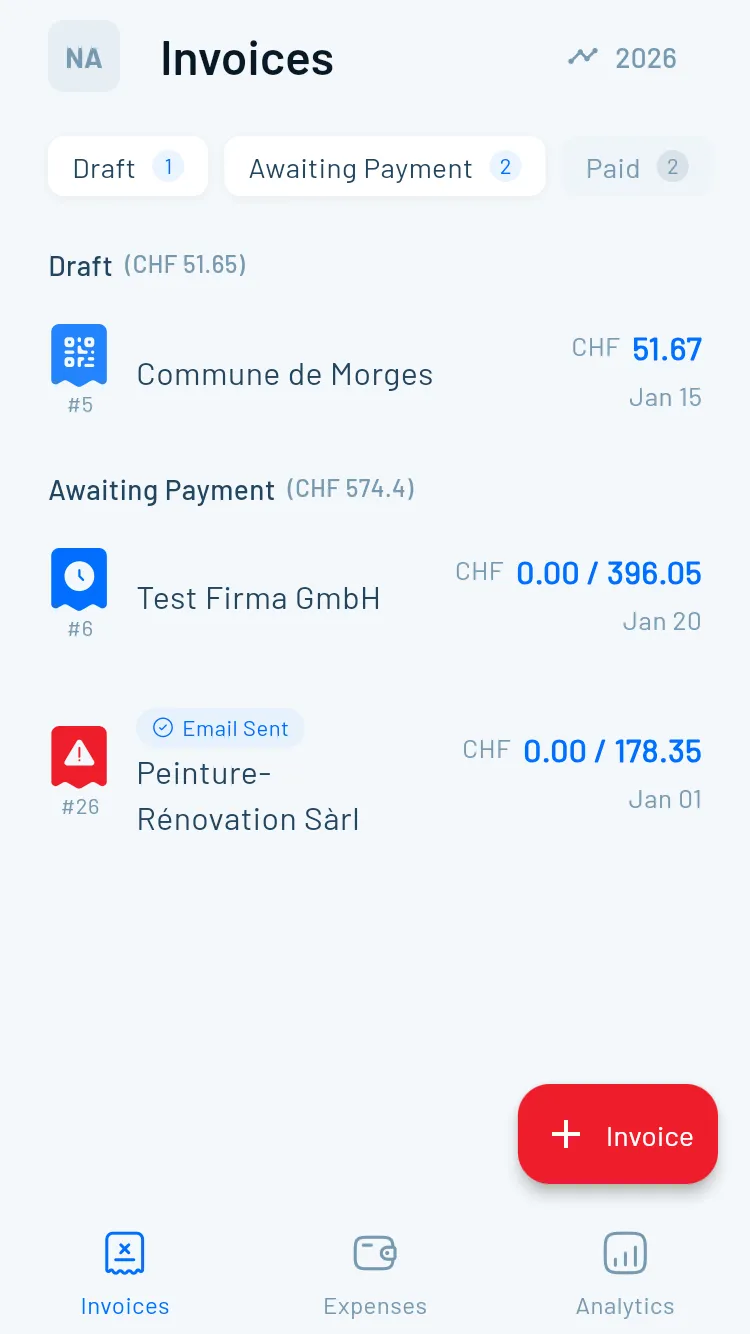
Sign in, open invoices and use the plus action to start a new invoice. Desktop and mobile layouts differ; look for the function rather than a fixed screen position.

  • Clean, simple form with only essential fields
  • Works on desktop, tablet, and mobile
  • No complicated menus to navigate
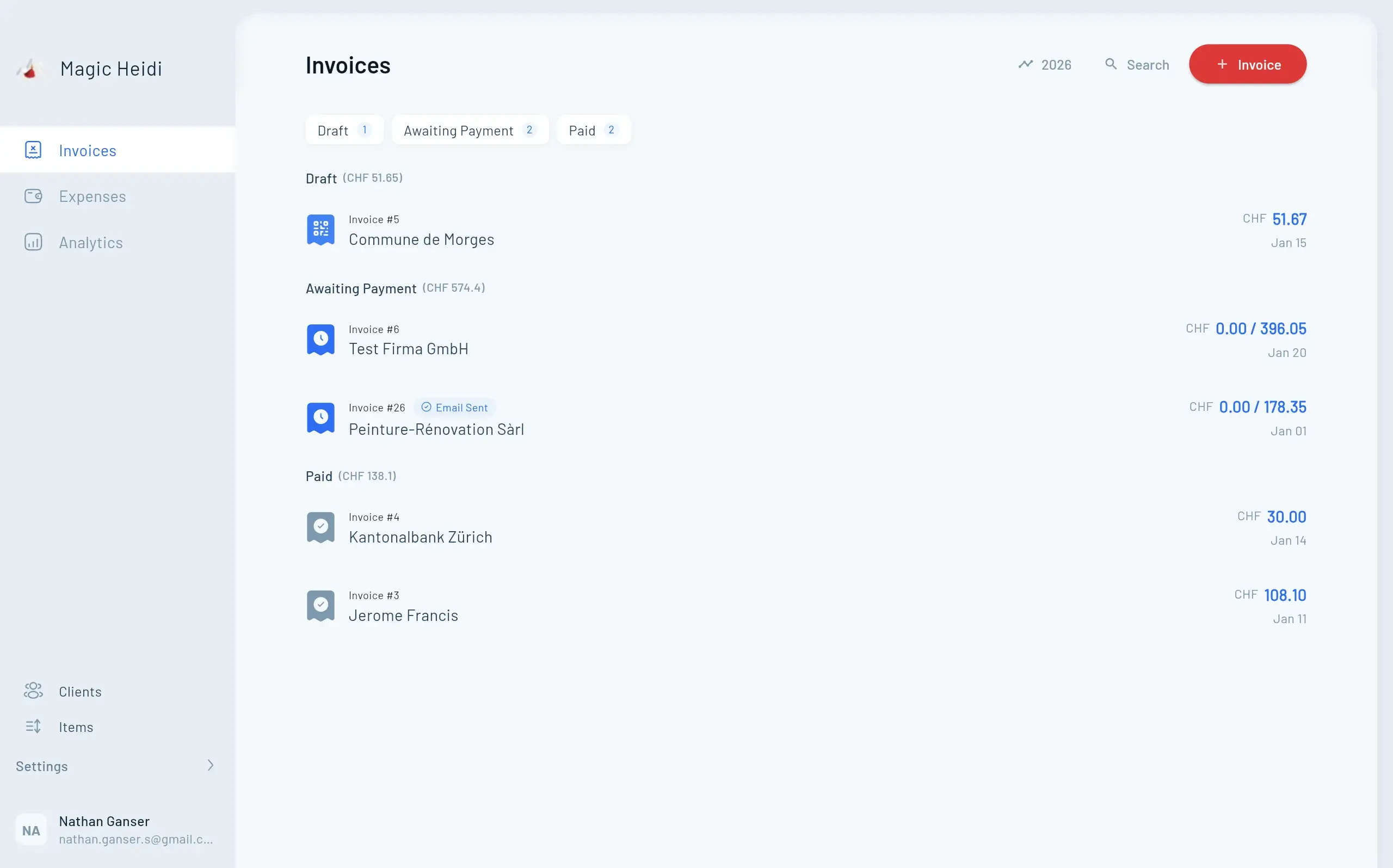
Magic Heidi Invoice Dashboard
Step 2

Enter Client Information

Select a saved customer or enter their name and full address. Check street, building number, postcode, town and country; automatic processing does not replace address checks.

  • One-click client selection for repeat customers
  • Check address data before creating the document
  • Review the PDF and payment details before sending
  • Client database saved for future invoices
Client Selection Interface
Step 3

Add Invoice Items and Services

Enter a description, quantity and unit price for your work. Reusable items can reduce repeated entry.

  • Multiple line items per invoice
  • Automatic total calculations
  • Check the VAT rate per item when VAT is enabled
  • Flexible quantity and pricing options
Invoice Line Items
Step 4

Configure Payment Details

Choose a bank account appropriate to the invoice currency. A Swiss QR payment section requires suitable CH/LI account details and CHF or EUR. Check the generated section in the PDF.

  • Automatic QR code generation
  • Add payment instructions as invoice text
  • Check account details and the payment reference
  • Check QR data against current SIX requirements
QR Invoice Payment
Step 5

Handle VAT Correctly

Magic Heidi supports automatic VAT calculations based on your inputs. Check your registration, VAT settings and the appropriate rate for the service yourself; review the calculated amounts before sending.

  • Automatic VAT calculations (8.1%, 2.6%, 3.8%)
  • Set VAT options according to your registration
  • Do not assume automatic determination of tax liability
  • Your VAT number included when applicable
VAT Management
Step 6

Customize Your Invoice

Add your logo and check the document. Invoice languages include German, French, Italian and English.

  • Upload your logo and check it in the PDF
  • Automatic sequential invoice numbering
  • Multi-language support (4 languages)
  • Custom notes and payment instructions
Invoice Customization
Step 7

Review, Send, and Track

Preview before sending. Send by email, download the PDF or print it. Maintain payment status and check outstanding invoices before following up.

  • One-click email delivery
  • PDF download for manual sending
  • Payment tracking dashboard
  • Update payment status after checking receipt of funds
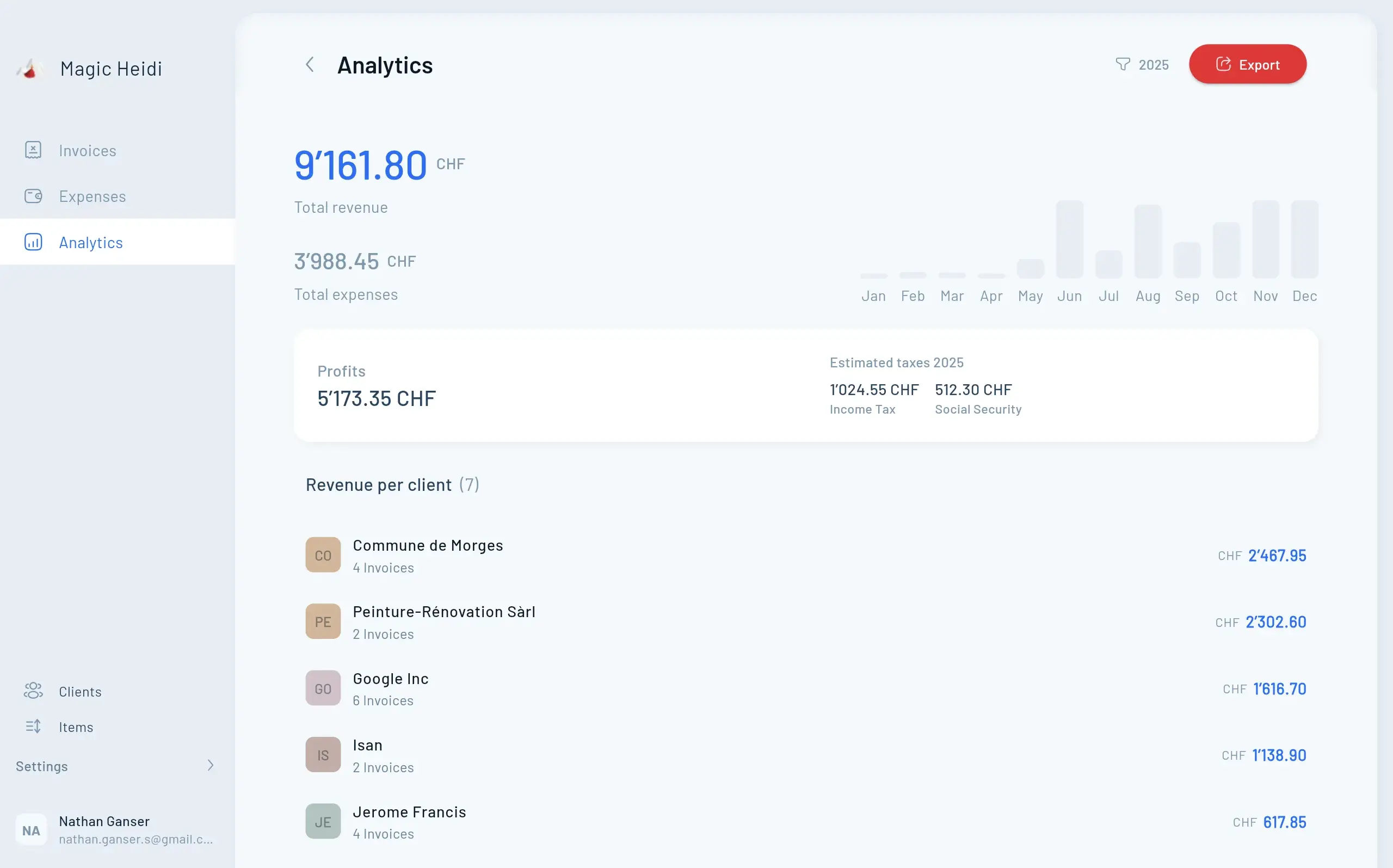
Invoice Tracking Dashboard

What You Must Check Before Sending

The app creates a document from your data. Correct addresses, tax treatment and bank details remain your responsibility; a generated PDF is not legal certification.

๐Ÿ”’ Check QR Data
๐Ÿฆ Check Bank Details
๐Ÿ“Š Check Your Information
๐ŸŒ Multi-Language
๐Ÿ“‹
QR Invoice Standards

Use suitable account details, currency and addresses

โœ…
Mandatory Elements

Check service date, descriptions and tax information

๐Ÿ‡จ๐Ÿ‡ญ
Your Own Archive

Keep PDFs and receipts in your own archive as well

๐Ÿ’ฐ
Correct VAT Rates

Select the appropriate rate and VAT mode yourself

Common Questions

Everything You Need to Know

Do I really need to charge VAT?

Tax liability does not depend solely on Swiss service turnover. Check registration, place of supply and exemptions with the FTA. Configure your VAT number and rates accordingly; the app does not independently verify registration status.

What if I make a mistake on an invoice?

Correct mistakes traceably and keep both the original and correction. For an invoice already sent or paid, ask your accountant which corrective document is needed. No specific credit-note workflow is promised here.

How do clients pay QR invoices?

They open their banking app, select 'Pay,' and scan the QR code on your invoice. The payment amount, your IBAN, and reference number transfer automatically. They should check the transferred details before confirming and sending the payment.

Can I invoice in different languages?

Yes. Create invoices in German, French, Italian, or English. Your Zรผrich clients receive German invoices while Geneva clients get French versions, all from the same software.

How do I track who hasn't paid?

Check outstanding invoices against actual bank receipts. Mark payments only after checking them. Automatic reminder intervals are not promised in this guide.

What about Tarif 590 for complementary therapists?

This general invoice workflow is not evidence of insurer-compliant Tarif 590 billing. Have required forms, tariff items and permitted patient data professionally reviewed before using it for that purpose.

Pro Tips

Invoice Faster and Smarter

Master these features to streamline your invoicing workflow even further.

Save Client Templates

Select saved customers and reusable items. Check dates, quantities and prices for each new job.

Recurring Invoices

Set up automatic invoices for ongoing monthly services. Magic Heidi generates and sends them on schedule.

Mobile Invoicing

Create invoices immediately after completing work, even from your phone. No waiting until you're back at your desk.

Expense Tracking

Photograph receipts, check the AI suggestions and add missing details before handing them to your accountant.

Accounting Export

Check available exports and required receipt files with your accountant. An export is not a promise of direct integration with every accounting system.

Multi-Currency

Choose the invoice currency and a suitable bank account. Swiss QR payment sections are limited to CHF/EUR; check tax treatment separately.

Start Invoicing Like a Pro Today

Set up business details and a bank account, create a sample invoice and review the PDF. Check information and tax treatment before sending it to a client.

Additional setup from the complementary quick-start guides: Open invoice editing to select language, currency, header notes and footer notes. You can switch the document type between quote and invoice; check the date and invoice number again afterwards. The app carries over items, but an accepted quote is not a confirmed payment.

For the guided introduction with video, see tutorials. Check pricing for current trial conditions, allowances and billing. This guide promises neither unlimited free use nor a fixed creation time.

Need help getting started? Magic Heidi support speaks German, French, Italian and English.