 Magic Heidi
Record bexio Expenses: The Complete Guide
Already paid or still outstanding? This guide explains expenses and supplier invoices using the entry methods documented by bexio.
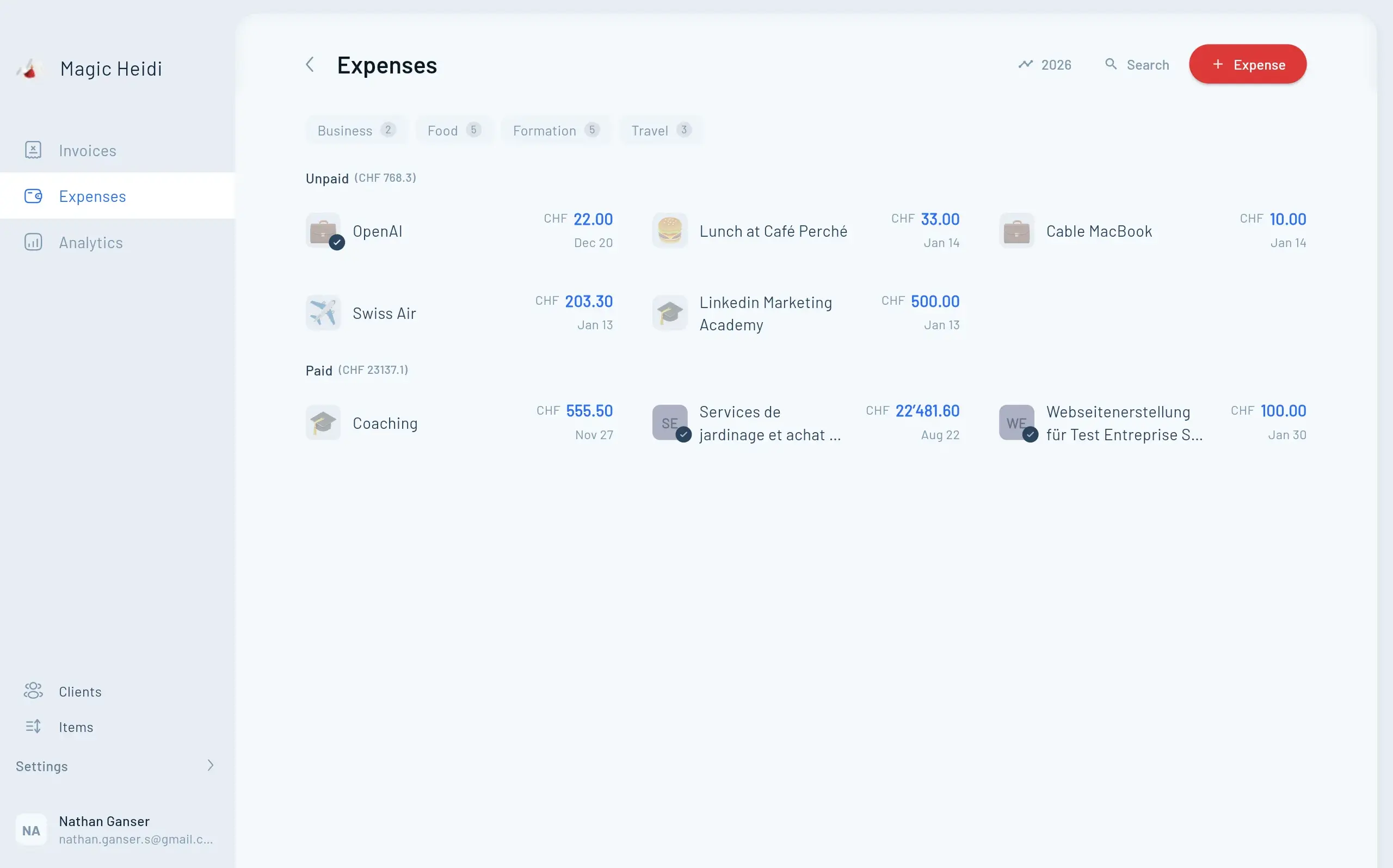
The Key Distinction in bexio Expenses
bexio distinguishes paid expenses from supplier invoices still to be paid. Choose according to the actual payment status, not just the receipt’s file type.
Expense
Already paid, such as a till receipt or cash purchaseSupplier invoice
Still outstandingWrong choice?
Your accounting records may need correctingExpense or Supplier Invoice?
| Expense (Aufwendung) | Supplier invoice (Lieferantenrechnung) |
|---|---|
| Already paid | Still to be paid |
| Direct posting | Record first, then record payment |
| No accounts payable posting | Accounts payable posting |
Choosing the wrong route can leave your records incorrect. Correcting it later takes extra work.
Before You Start: Check Your Setup
Check these settings before recording expenses.
VAT settings
Check VAT settings and the accounting period against your registration and reporting method before posting expenses.
Prepare your chart of accounts
Identify the expense accounts you use regularly: office supplies, travel, phone and internet, software subscriptions and vehicle costs.
Install bexio Go
The mobile app supports receipt scanning, QR-bill capture and recording expenses on the go.
Create an Expense (Already Paid)
Use this route for till receipts, fuel receipts and small purchases paid immediately.
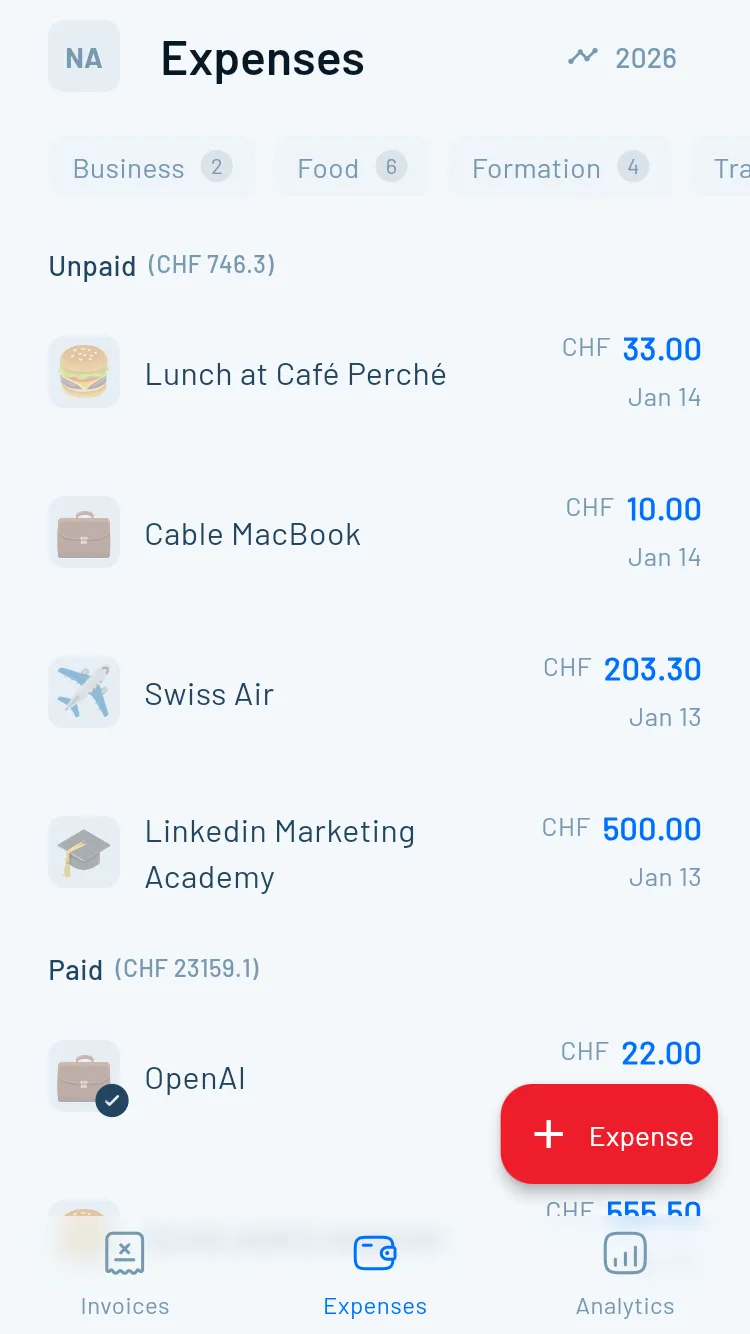
Step by Step: Record an Expense
The menu labels below refer to the German interface, matching the linked documentation.
- Sign in and open Ausgaben → Aufwendungen (expenses). The official instructions describe this route and entry through the inbox, as checked on 1 November 2026.
- Select Neue Aufwendung (new expense). Alternatively, upload the receipt to Posteingang (inbox), then choose Neue Aufwendung from the three-dot menu.
- Complete the expense, including the account actually used for payment:
- Date paid
- Description of the purchase
- Amount, including or excluding VAT
- Expense account
- Appropriate VAT rate
- Drag the scanned receipt into the attachment field.
- Save the expense to create the posting.
Multiple VAT rates: bexio documents a supplier invoice in the web application as the route for this. Check mixed receipts separately; this limitation does not justify a blanket claim about every possible split between accounts.
Record a Supplier Invoice (Still Outstanding)
For supplier invoices you will pay later.
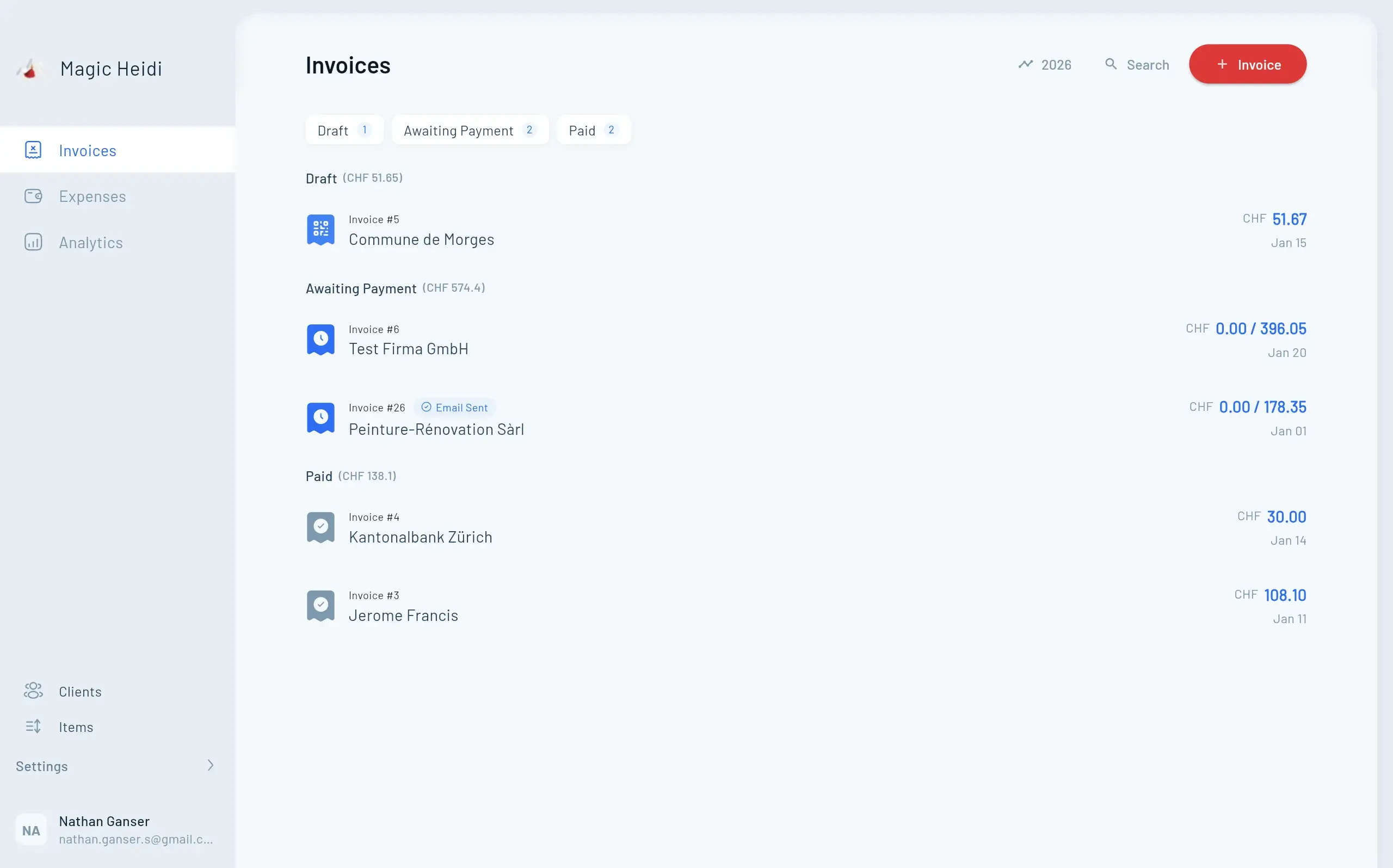
Step by Step: Record a Supplier Invoice
- In Ausgaben, open Lieferantenrechnungen (supplier invoices). A supplier contact is required here; bexio says it is not mandatory for expenses.
- Create a new supplier invoice and enter the supplier, supplier invoice number, invoice date, due date and individual items with their account and VAT details.
- Attach the invoice PDF.
- After saving, the invoice remains outstanding.
- To record payment, open the supplier invoice, choose Zahlung erfassen (record payment), select the actual bank or cash account and confirm.
bexio Go:
Scan Receipts on the Go
The app can extract receipt data; check its suggestions before posting.
Capture QR-bills
According to bexio, QR payment data is transferred to the supplier invoice. Check the amount, account and tax details before posting.
- Open bexio Go
- Scan the QR code
- Review the details
- Confirm
Receipts without a QR code
Photograph till receipts and other receipts in the app.
- Photograph the receipt
- Review the suggested data
- Choose an expense account
- Create the expense
Credit card statements
Consider a consolidated supplier invoice or individual expenses, according to your accounting workflow.
- Record the statement
- Add individual items
- Link the credit card account
- Or record individual expenses
Avoid Common Mistakes
These checks help prevent incorrect or duplicate postings.
Wrong entry method
Has the money already been paid? Use an expense for paid purchases and a supplier invoice for outstanding bills.
Wrong VAT treatment
Check the receipt and your input tax entitlement. Current Swiss rates are 8.1%, 2.6% and 3.8%. VAT-exempt services are not simply another rate of 0%.
Missing receipt
Attach the original receipt and keep it traceable, unchanged and readable. An arbitrary photo alone does not guarantee compliant archiving.
Wrong expense account
Keep an account list and use the same accounts consistently for the same types of expense.
A Weekly Bookkeeping Routine
- Scan physical receipts.
- Retrieve bank transactions through the available banking workflow.
- Process outstanding supplier invoices.
- Reconcile bank accounts with bexio.
Paid Privately? Do Not Record the Expense Twice
If you pay a business expense with your private card, document who actually paid. The appropriate private or employee clearing account depends on your legal form and chart of accounts; agree the treatment with your accountant. Reimbursement later is not a second occurrence of the same business expense.
Receipts With Several VAT Rates
According to the bexio Go documentation, expenses do not support several VAT rates. A supplier invoice in the web application can contain several rates; supplier invoices in bexio Go are limited to one rate. Do not assign a single rate to a restaurant or hotel receipt without checking its items.
Check Scan Allowances and Banking Separately
The current bexio Go page lists 50 to unlimited automatic extractions, depending on the plan, rather than the older 5–50 figures. Reaching the extraction allowance does not prevent manual entry of further receipts. Check the current plans and prices.
Bank connections are a separate workflow. After an import or synchronisation, check whether a payment has already been posted before creating a new expense.
Disclosure: This guide is based on manufacturer documentation, not our own test account. Magic Heidi is a competing provider. To compare our receipt capture, use the same receipt and include all correction work. No measured speed advantage is claimed here.
Frequently Asked Questions
What is the difference between expenses and supplier invoices?
Expenses are for purchases already paid, such as till receipts. Supplier invoices are for bills you still need to pay.
Can I split an expense across several accounts?
Check the split you need in the current web application. The documented VAT limitation is specific: use a supplier invoice, not an expense, for several VAT rates.
Do I need to keep paper receipts?
Whether you can destroy the paper depends on the document and proper electronic retention. Keep receipts traceable, unchanged and readable; discuss special cases with your accountant.
How do I handle foreign-currency payments?
Record the original currency and amount, then check the exchange rate and payment account. Agree the treatment of exchange differences and fees with your accountant instead of assuming the amount paid equals the invoice amount.
What does bexio cost now?
Check the current bexio pricing page and your existing contract. Old Starter, Pro and Pro+ figures are not a current plan comparison. Billing periods and add-on modules affect the total.
Efficiency Through the Right Entry Method
Choose the correct document type, record the actual payment account and check reconciliation. This helps avoid duplicate expenses and outstanding invoices that have already been paid.
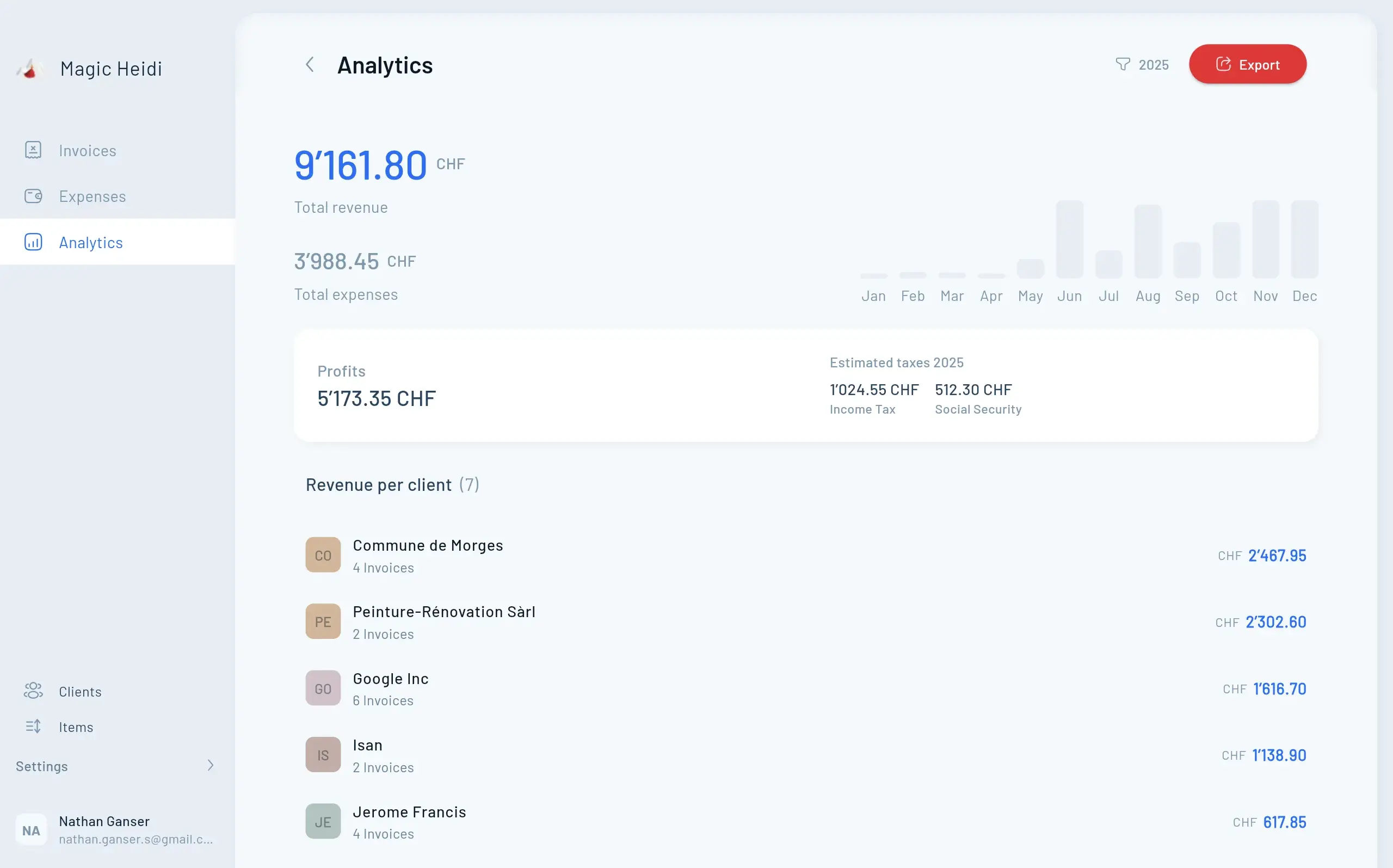
Compare Magic Heidi Receipt Capture
Test receipt capture against your actual needs. AI suggestions for dates, amounts and VAT still need checking before you accept them.