Time Tracking

Time Tracking for Freelancers: How to Log Hours Directly in Invoices

No more double work – track your working hours where they're needed: directly on the invoice.

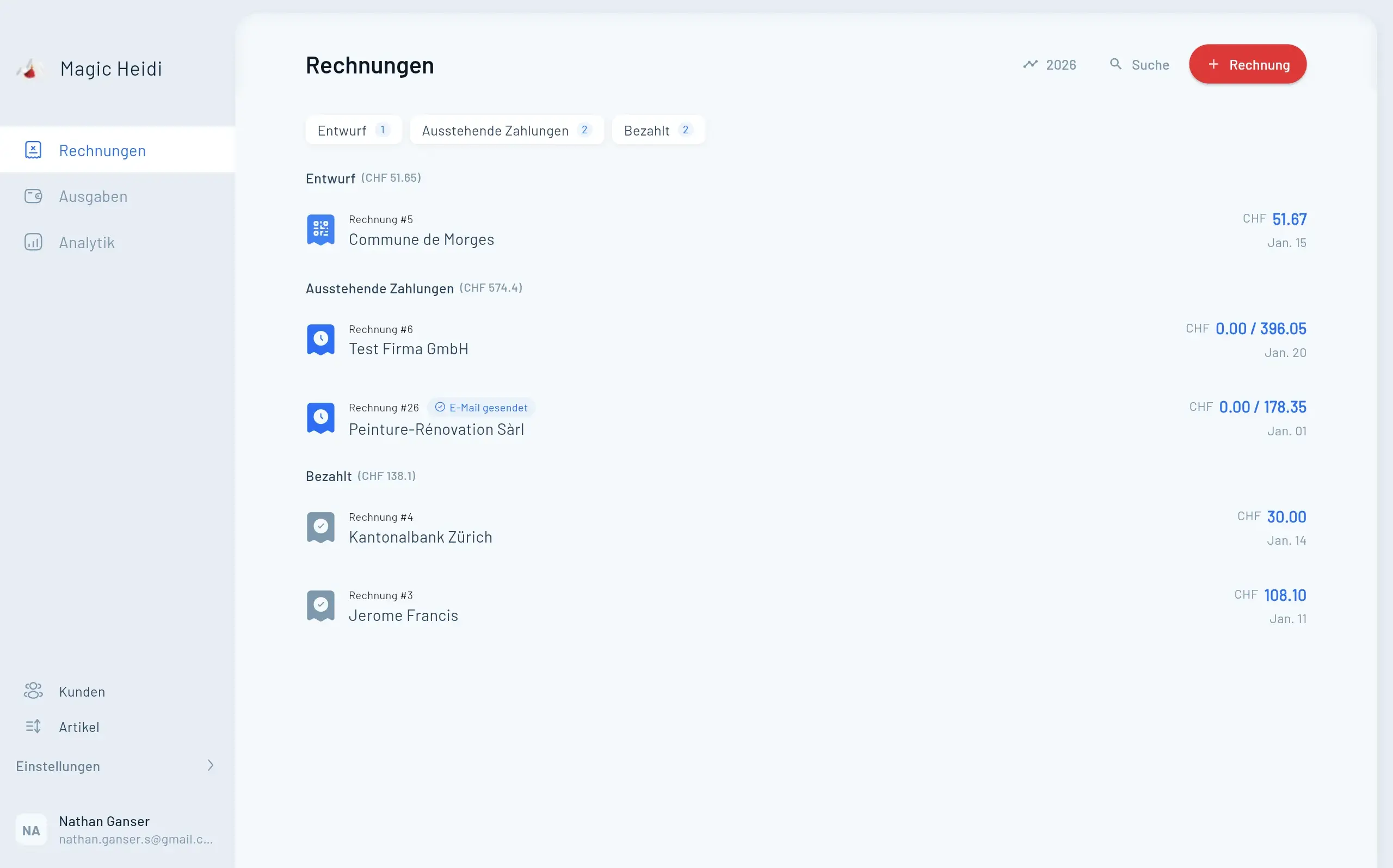
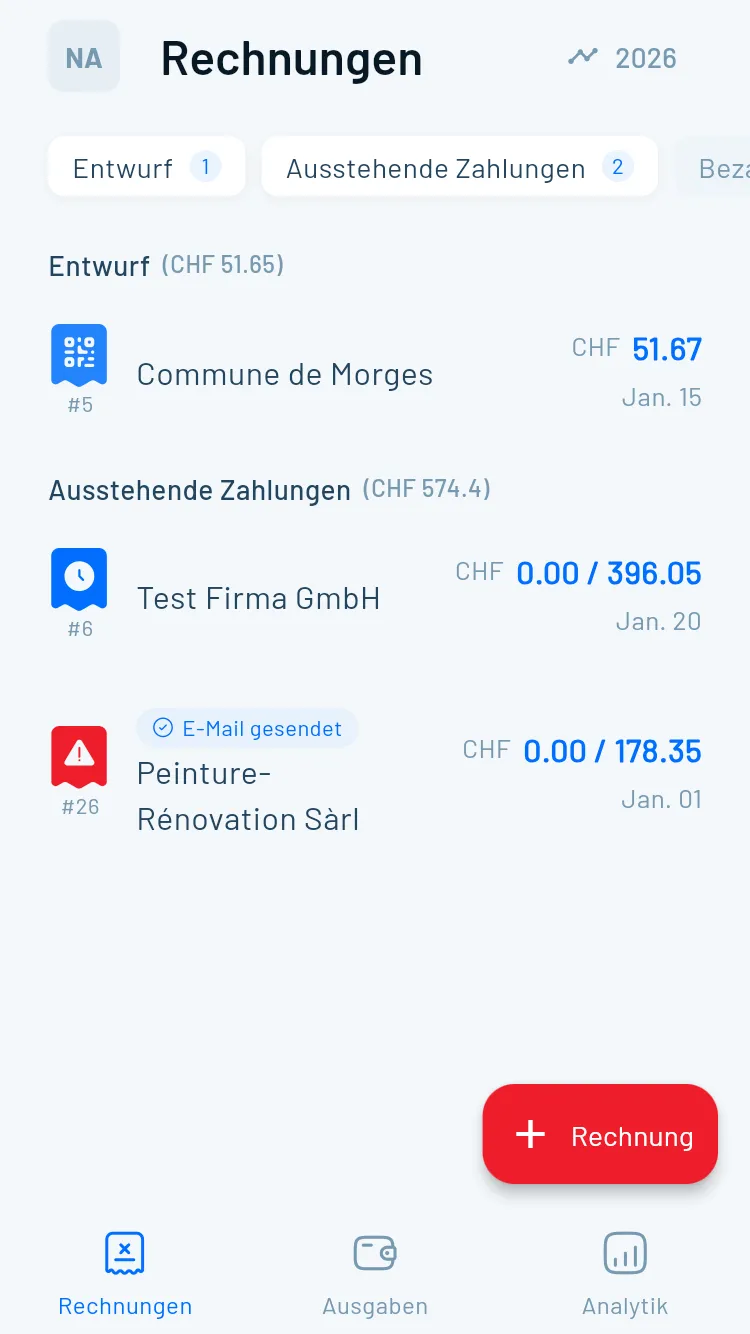
Magic Heidi invoice list with time tracking

As a freelancer, you know the problem: you work hourly for different clients, need to document every session properly, and create a transparent invoice at the end of the month. Often, this means switching back and forth between a time tracking tool and your accounting software – a tedious process that costs valuable time.

Magic Heidi solves this problem by integrating time tracking directly into the invoice. Instead of tracking your hours separately and then manually transferring them into an invoice, you log your working hours where they end up anyway: on the invoice itself.

In this article, you'll learn:

  • How to create hourly line items directly in an invoice
  • How to accumulate hours over the month and bill at month-end
  • How to import time tracking data from external tools using AI
  • How to apply discounts and adjustments before sending the invoice

Why Time Tracking Directly in the Invoice Makes Sense

Many accounting tools strictly separate time tracking from invoicing. This leads to double work: you log your hours in one system and then manually transfer them to another. Errors easily creep in – a forgotten hour here, a wrong hourly rate there.

⚑

No Double Effort

You log your hours right where they're needed.
πŸ”

Full Transparency

On the invoice, your client sees exactly on which day and from when to when you worked.
βœ…

Fewer Errors

Since there's no manual transfer, the numbers always add up.
πŸ“Š

Ongoing Overview

You can see at any time how much has accumulated so far.
Step-by-Step

Logging Hourly Line Items in an Invoice

In three simple steps from a new invoice to a fully calculated hourly line item.

Step 1

Create a New Invoice

First, create a new invoice and select the desired client. Since time tracking in Magic Heidi happens directly in the invoice, this is your starting point for all hour logging.

  • Select a new client or choose an existing one
  • The invoice stays in draft until you send it
  • All line items are saved continuously
Magic Heidi Create new invoice
Step 2

Add an Hourly Item

When adding a new line item, select the hourly variant. Enter the description, hourly rate, and time period.

  • Description: What did you do? e.g. 'Consulting' or 'Web Design'
  • Hourly rate: e.g. CHF 100.–/hour
  • Time period: From when to when? e.g. 10:00 AM to 2:30 PM
  • Automatic calculation: 4.5 hours Γ— CHF 100.– = CHF 450.–
Magic Heidi Add hourly line item

Tip: Make sure to use descriptive labels. Your client will see these line items on the invoice. 'Consulting – Strategy Workshop' is much more informative than just 'Work'.

Monthly Billing

Accumulate Hours Over the Month

The invoice stays open as long as you don't send it. This means you can continuously log your hours throughout the entire month. Create a new invoice for each client at the beginning of the month, add a new hourly line item after each work session, and send it at the end of the month.

Magic Heidi invoice overview with accumulated hours
Workflow

How the Ongoing Process Works

Three simple steps for clean monthly billing.

  • πŸ“
    Create Invoice at the Start of the Month

    Create a new invoice for each client you bill hourly.

  • ⏱️
    Log Hours Continuously

    Add a new hourly line item after each work session – or collect them by day.

  • βœ‰οΈ
    Send at Month-End

    Review the invoice, make sure all hours are logged, and send it.

  • πŸ“‹
    Keep Track of Status

    Sent invoices are marked as 'outstanding'. Open ones remain in draft.

Invoices
  • Invoice #3

    Magic Heidi

    CHF 500

    Jan 29

  • Invoice #2

    Webbiger LTD

    CHF 2000

    Jan 24

  • Invoice #1

    John Doe

    CHF 600

    Jan 20

Best Practice: Make it a habit to enter your hours daily or at least weekly. This way, you avoid having to painstakingly reconstruct at the end of the month when you did what.

Important: Always carefully review the imported invoice before sending it. As powerful as the AI is – human verification is essential for invoices. Make sure all hourly rates were correctly recognized and the activity descriptions are accurate.

Flexibility

Apply Discounts and Adjustments

Sometimes you want to give a client a discount – whether as a goodwill gesture, due to project delays, or based on an agreed volume discount. In Magic Heidi, you can apply discounts directly to individual line items: select the item, enter the discount, done. The calculation happens automatically.

Magic Heidi discounts and adjustments

Tip: If you regularly offer discounts for certain clients or activities, make a note of the terms. This ensures that every invoice is consistent.

Comparison

Which Approach Is Right for You?

Magic Heidi offers you two ways to track time – depending on how detailed your billing needs to be.

CriterionDirect EntryImport from External Tool
Suitable forFreelancers who bill in full or half hoursFreelancers who track down to the minute or have many small entries
AdvantagesNo additional tool needed, everything in one placePrecise tracking with specialized tools, automatic transfer via AI
Effortβœ“ Minimalβœ“ Low thanks to AI
Can be combinedβœ“ Yesβœ“ Yes

Simplify Time Tracking and Invoicing

Try Magic Heidi and create your first hourly invoice. When time tracking and invoicing come together in one place, you not only save time – you also eliminate a common source of errors in your accounting.