 Magic Heidi
MWST in Magic Heidi einrichten (Schritt-für-Schritt-Anleitung für Schweizer Freelancer)
Erfahre, wie du die MWST in Magic Heidi aktivierst, zwischen Methoden wählst, verschiedene MWST-Sätze auf einer Rechnung verwendest und deine vierteljährliche MWST-Abrechnung in Minuten erstellst.

Founder of Magic Heidi
MWST in Magic Heidi einrichten (Schritt-für-Schritt-Anleitung für Schweizer Freelancer)
Um die MWST in Magic Heidi einzurichten, gehst du zu Einstellungen → Mein Unternehmen, scrollst zum MWST-Bereich und gibst deine MWST-Nummer ein. Dieser eine Schritt schaltet die MWST-fähige Rechnungsstellung, die Spesenerfassung mit MWST-Abzug und eine quartalsfertige MWST-Abrechnung frei – alles ohne die App zu verlassen.
Aber hier kommt der Teil, den dir niemand sagt: Die meisten Schweizer Freelancer richten die MWST am ersten Tag falsch ein. Sie wählen die falsche Steuermethode, vergessen die MWST auf Ausgaben zu erfassen, und stehen dann am Quartalsende vor einem Chaos aus Tabellenkalkulationen. Egal ob du frisch MWST-pflichtig bist oder endlich ein Tool willst, das mitdenkt – diese Anleitung führt dich durch jede Option, jede Entscheidung und jeden Bildschirm.
Am Ende hast du eine saubere MWST-Einrichtung, Rechnungen die den richtigen Betrag automatisch berechnen, und eine Quartalsabrechnung, die du in etwa 30 Sekunden exportieren kannst. Los geht's.
Was die MWST-Aktivierung in Magic Heidi bewirkt
Sobald du eine MWST-Nummer in den Einstellungen gespeichert hast, passieren gleichzeitig vier Dinge: Rechnungen erhalten eine MWST-Satzauswahl pro Position, Spesen erhalten ein MWST-Eingabefeld damit du Vorsteuer zurückfordern kannst, deine Analysen trennen nun Nettoeinnahmen von eingenommener MWST, und ein neuer Bereich MWST-Abrechnung erscheint in deinem Dashboard.
Dieser letzte Punkt ist der stille Held. Er ist der Unterschied zwischen einer Abrechnung in drei Minuten und einem Samstagsnachmittag voller PDFs.
Nehmen wir das Beispiel von Léa, einer fiktiven UX-Designerin aus Lausanne, die im Oktober die CHF 100'000-Umsatzschwelle überschritten hat. Sie registrierte sich für die MWST, erhielt ihre Nummer von der ESTV und öffnete Magic Heidi in Erwartung einer komplizierten Einrichtung. Sie fügte ihre MWST-Nummer ein, wählte „additiv" und „Effektivmethode" – fertig in unter zwei Minuten. Ihre nächste Rechnung addierte automatisch 8,1 % obendrauf – kein Tabellenblatt, keine manuelle Berechnung.
Bereit, dasselbe zu tun? Öffne deine Magic Heidi-Einstellungen → und halte deine MWST-Nummer bereit, bevor wir weitermachen.
Schritt 1: MWST-Nummer hinzufügen
Gehe zu Einstellungen → Mein Unternehmen. Du siehst dort einen Bereich für Unternehmensinformationen und darunter einen MWST-Bereich. Füge deine MWST-Nummer ein (die, die wie CHE-123.456.789 MWST aussieht) und speichere.
Das ist der Auslöser. In dem Moment, in dem Magic Heidi eine MWST-Nummer gespeichert hat, werden alle anderen MWST-Funktionen in der gesamten App aktiviert.
Direkt darunter erscheinen dann neue Konfigurationsoptionen – MWST-Modus und MWST-Methode. Überspring diese nicht. Die richtige Kombination hier zu wählen spart dir später stundenlange Korrekturen.
Schritt 2: MWST-Modus wählen (Additiv vs. Inklusiv)
Das ist die erste echte Entscheidung – und sie verwirrt viele neue Freelancer. Hier die einfache Version (vollständige Vergleichstabelle weiter unten).
Die meisten Schweizer Freelancer wählen additiv. Es ist der Standard, transparent auf der Rechnung und hält deinen Tagessatz sauber. Du bietest CHF 1'200/Tag an, der Kunde sieht CHF 1'200 + MWST, und alle wissen, woran sie sind.
Inklusiv macht in bestimmten Fällen Sinn: Retail-Preisgestaltung, Fixpakete bei denen der Gesamtpreis zählt, oder B2C-Arbeit wo Kunden „All-inclusive"-Preise erwarten. Wenn du unsicher bist, wähle additiv.
Schritt 3: MWST-Methode wählen (Effektiv vs. Saldosteuersatz)
Zweite Entscheidung – und diese hängt davon ab, wofür du dich bei der Eidgenössischen Steuerverwaltung (ESTV) angemeldet hast.
- Effektivmethode: Du erfasst die eingenommene MWST (auf Rechnungen) und die bezahlte MWST (auf Spesen) und überweist die Differenz. Das ist die Standardmethode, die die meisten Freelancer verwenden.
- Saldosteuersatz: Du hast dich dafür extra angemeldet, und die ESTV hat dir einen reduzierten branchenspezifischen Satz zugeteilt – meistens zwischen 6,0 % und 6,5 % je nach Beruf. Du stellst Kunden den normalen 8,1 % in Rechnung, überweist aber nur den Flachsatz auf deinen Gesamtumsatz. Dafür kannst du keine MWST auf Ausgaben abziehen.
Nehmen wir Marco, einen fiktiven IT-Berater aus dem Tessin. Er wählte den Saldosteuersatz (6,2 % in seinem Fall), weil er kaum Geschäftsausgaben hat – er arbeitet im Homeoffice mit einem Laptop und sonst nicht viel. Für ihn ist der Saldosteuersatz einfacher und günstiger. Aber für Anna, eine fiktive Grafikdesignerin aus Zürich, die Softwarelizenzen kauft, Hardware anschafft und einen Coworking-Platz mietet, gewinnt die Effektivmethode – weil sie die MWST auf all diese Ausgaben zurückfordern kann.
Wenn du dich nicht ausdrücklich für den Saldosteuersatz angemeldet hast, wähle Effektivmethode. Du kannst hier auch einen benutzerdefinierten MWST-Satz aktivieren, aber für 99 % der Freelancer reichen die Standard-Schweizer Sätze vollkommen aus.
Speichern. Einrichtung fertig.
Schritt 4: MWST auf einer Rechnung anwenden
Erstelle jetzt eine neue Rechnung und füge eine Position hinzu – sagen wir „Beratungsarbeit, 3 Stunden à CHF 100". Mit aktivierter MWST siehst du bei jeder Position ein neues Dropdown-Menü: den MWST-Satz-Selektor.
Wähle Normal (8,1 %) und die Rechnung berechnet automatisch: 3 × 100 = 300, plus 8,1 % MWST = CHF 324.30. Die MWST erscheint als eigene Zeile, sowohl pro Position als auch als Gesamtbetrag, sodass dein Kunde genau sieht, was er bezahlt.
Verschiedene MWST-Sätze auf einer Rechnung mischen
Du kannst verschiedenen Positionen auf derselben Rechnung unterschiedliche MWST-Sätze zuweisen. Die vier verfügbaren Sätze sind in der Tabelle weiter unten zusammengefasst.
Wähle einfach den richtigen Satz pro Position, und Magic Heidi erledigt die Berechnung. Die fertige Rechnung gruppiert die MWST-Beträge nach Satz – genau so, wie es der Buchhaltung deines Kunden gefällt.
MWST pro Rechnung überschreiben
Manchmal musst du den Standard überschreiben. Zwei häufige Fälle:
- Rechnung an einen ausländischen Kunden: Dienstleistungen an ein nicht-schweizerisches Unternehmen sind in der Regel MWST-befreit. Setze auf dieser Rechnung die MWST-Logik auf keine MWST – die Rechnung geht sauber raus, mit einem Hinweis, dass der Leistungsort ausserhalb der Schweiz liegt.
- Einmalige Inklusivpreisgestaltung: Vielleicht hast du einem Kunden einen Pauschalpreis von CHF 500 angeboten und möchtest keine MWST oben drauf. Stelle diese Rechnung auf inklusiv um, und Magic Heidi rechnet die MWST aus dem CHF 500-Betrag heraus.
Erstelle die Rechnung, und du erhältst ein sauberes PDF mit korrekt angewendeter MWST pro Position, einer MWST-Zusammenfassung, dem Gesamtbetrag und dem Schweizer QR-Code am Ende. Fertig zum Versand.
Möchtest du das gleich an einer echten Rechnung ausprobieren? Erstelle kostenlos ein Magic Heidi-Konto →, aktiviere die MWST und versende deine erste konforme Rechnung in unter fünf Minuten.
Schritt 5: MWST auf Spesen erfassen
Hier holen sich die Freelancer mit Effektivmethode ihre MWST zurück. Jede Geschäftsausgabe, die du erfasst, kann jetzt eine MWST-Komponente enthalten – und Magic Heidi berechnet, wie viel davon du zurückfordern kannst.
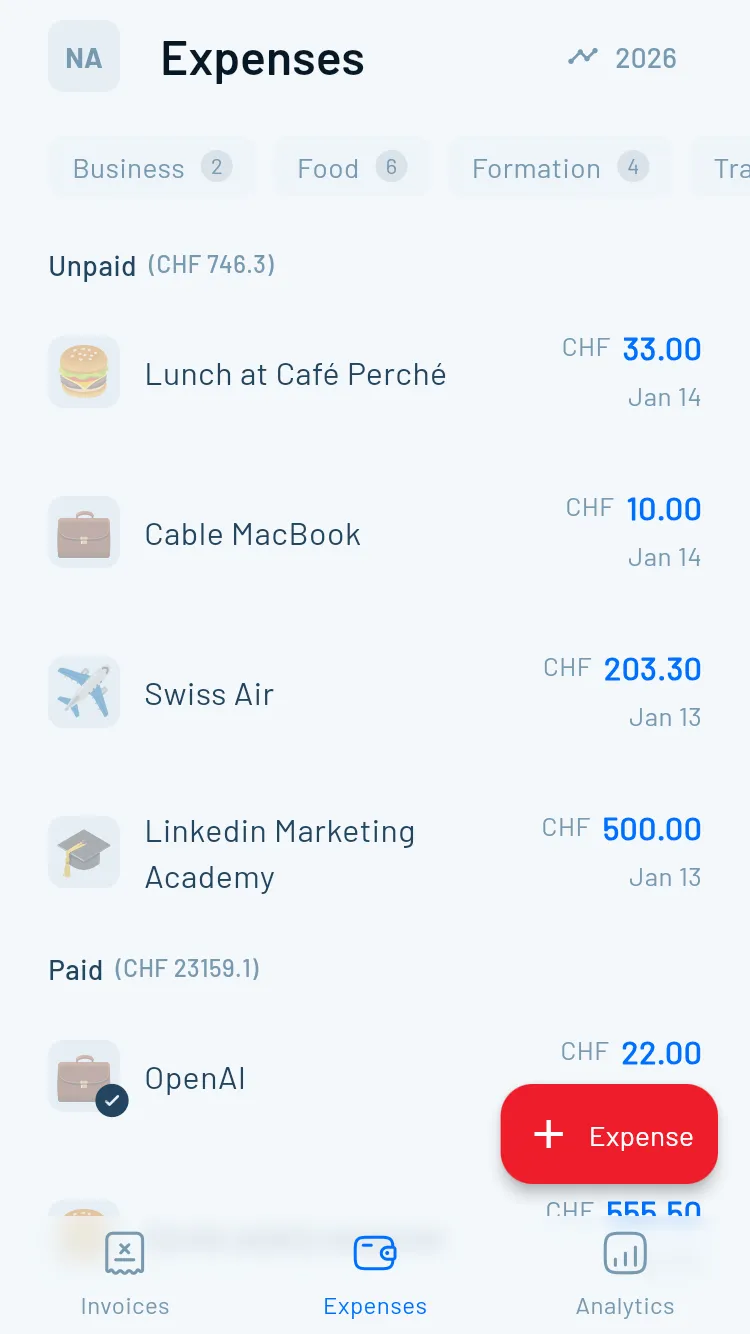
Gehe zu Spesen, klicke auf „Neue Spese" und gib den Betrag ein – zum Beispiel CHF 100 inkl. MWST für ein Software-Abonnement. Wähle den MWST-Satz (in den meisten Fällen 8,1 % Normal), und Magic Heidi berechnet sofort, dass CHF 7.50 von diesen CHF 100 MWST war, die du zurückfordern kannst. Kategorie wählen, speichern, fertig.
Stell dir Stefan, einen fiktiven Berner Videografen vor, der monatlich rund CHF 2'000 für Gerätemieten, Cloud-Speicher und Schnittsoftware ausgibt. Früher erfasste er alles in einer Tabelle und versuchte sich am Quartalsende an die MWST-Rückforderung zu erinnern. Jetzt wird jede Spese in 15 Sekunden mit automatisch berechneter MWST erfasst, und seine Rückforderung fliesst direkt in den MWST-Abrechenungsbildschirm ein. Übers Jahr gerechnet sind das rund CHF 1'800 MWST, die er zurückbekommt – ohne am Quartalsende auch nur einen Finger zu rühren.
Genau deshalb schneiden Freelancer mit Effektivmethode meist besser ab: Jede Kaffeemaschine, jedes Adobe-Abo, jede Coworking-Rechnung bringt MWST zurück in deine Tasche – aber nur wenn du sie erfasst.
Schritt 6: Quartalsweise MWST-Abrechnung erstellen
Das ist der Lohn der Mühe. Gehe zum Bereich MWST-Abrechnung in deinem Dashboard.
Wähle das Quartal, das du abrechnen möchtest (Q1, Q2, Q3 oder Q4). Dann wähle deine Verbuchungsbasis:
- Vereinbart (Rechnungsbasis): MWST wird fällig, wenn du die Rechnung sendest
- Vereinnahmt (Kassenbasis): MWST wird fällig, wenn der Kunde tatsächlich zahlt
Die meisten Freelancer verwenden die Kassenbasis, weil sie dem Cashflow entspricht – du schuldest keine MWST auf Rechnungen, die der Kunde noch nicht bezahlt hat. Prüfe aber, wofür du dich bei der ESTV angemeldet hast.
Der Bildschirm zeigt dir dann für das gewählte Quartal:
- Gesamteinnahmen (netto, ohne MWST)
- Gesamte auf Rechnungen eingenommene MWST
- Gesamte auf Spesen bezahlte MWST
- Den genauen Betrag, den du auf der Bundessteuer-Website (estv.admin.ch) eintragen musst
Und hier kommt der Teil, der neue Freelancer oft überrascht: Es ist völlig normal, dass der Staat dir Geld schuldet. Wenn du ein umsatzschwaches Quartal hattest, aber viele Geräteanschaffungen, kann deine rückforderbare MWST die eingenommene übersteigen. Magic Heidi zeigt das klar an, damit du weisst, dass du eine Rückerstattung erhältst – und keine Zahlung leisten musst.
Du kannst auch den vollständigen MWST-Bericht als Excel exportieren – für deine Unterlagen oder deinen Treuhänder. Ein Klick, vollständige Aufschlüsselung, fertig.
Fazit: Deine MWST-Einrichtung in drei Minuten
Der ganze Ablauf ist simpel: MWST-Nummer hinzufügen, additiv + effektiv wählen, speichern, dann MWST pro Position auf Rechnungen anwenden und Spesen mit MWST erfassen, um Vorsteuer zurückzufordern. Eine kurze Sechs-Schritte-Zusammenfassung findest du direkt unten.
Das war's. Keine Tabellenkalkulationen, keine manuellen Berechnungen, keine Panik am Quartalsende. Der ganze Sinn des Wechsels zu einem MWST-fähigen Tool ist, den Steueranteil unsichtbar zu machen – damit du dich auf die Arbeit konzentrieren kannst, die dir Geld einbringt.
Deine MWST sollte nicht das sein, was dich ausbremst. Richte sie einmal richtig ein – und denk nie wieder daran.