 Magic Heidi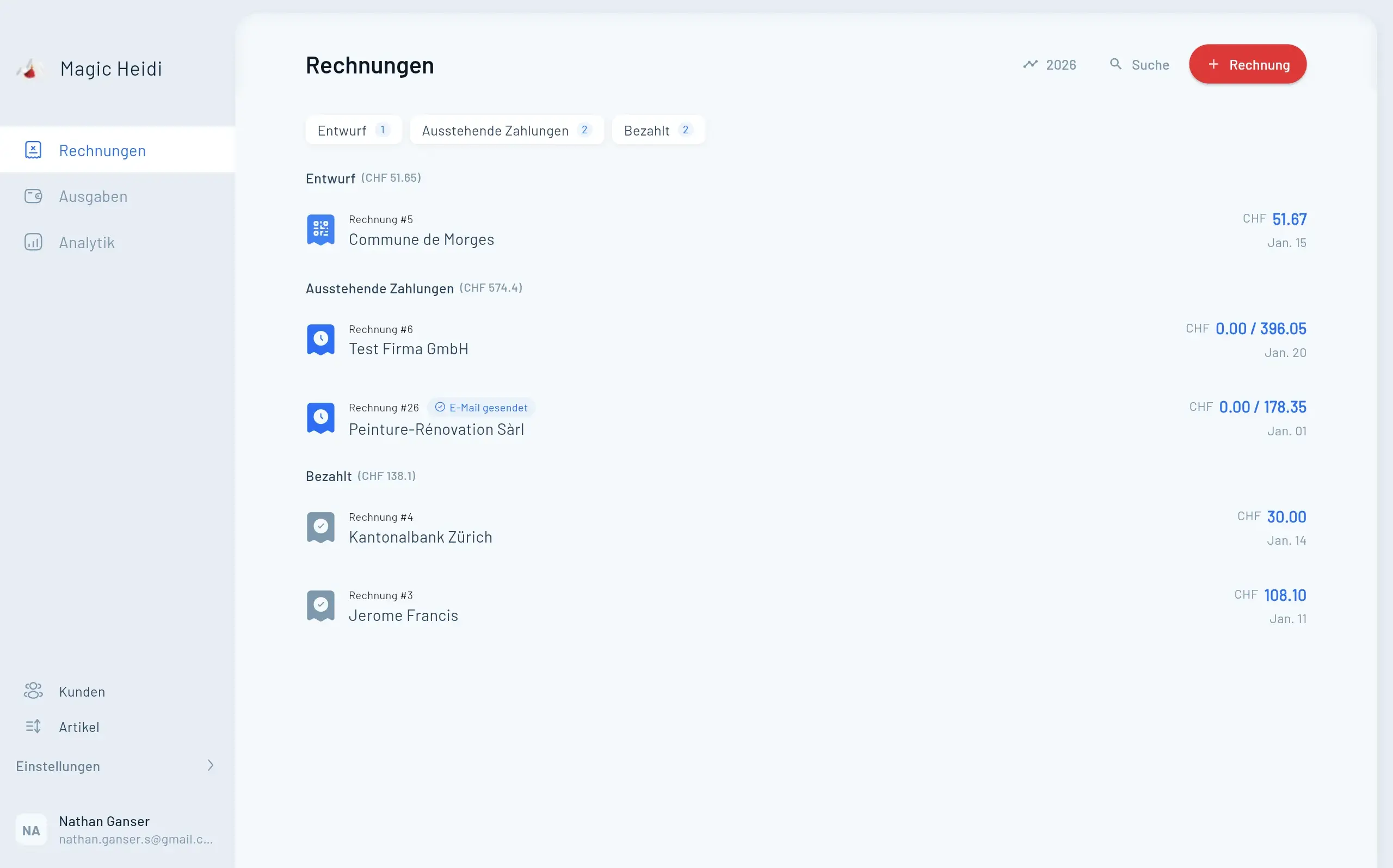
Daten in Magic Heidi importieren: Kunden, Rechnungen & Ausgaben in Sekunden
Importiere Kunden, Rechnungen und Ausgaben in Magic Heidi per Drag-and-drop. Die KI erkennt das Format automatisch – so funktioniert's.

Founder of Magic Heidi
Daten importierst du in Magic Heidi, indem du deine Datei – Kunden, Rechnungen oder Ausgaben – einfach per Drag-and-drop in den passenden Bereich ziehst. Die KI liest das Format, erkennt die Felder und übernimmt alles in Sekunden. Keine Vorlagen, kein manuelles Spalten-Mapping, kein aufwendiges Aufräumen.
Das ist die kurze Antwort. Aber wenn du schon mal das Buchhaltungstool gewechselt hast, weisst du: Die Datenmigration ist meistens der schlimmste Teil. Stundenlange Tabellen-Umformatierungen. Vorlagen, die exakte Spaltennamen verlangen. Fehler, weil ein Datum als «15.03.2025» statt «2025-03-15» geschrieben ist. Wenn ein Tool also «einfach per Drag-and-drop» verspricht, ist Skepsis berechtigt.
Diese Anleitung zeigt dir genau, wie der Import für jeden Datentyp funktioniert, was die KI für dich übernimmt und was dich erwartet, wenn du jahrelange Daten in ein neues System überträgst. Am Ende weisst du, ob du dein Freelancer-Business realistisch in einer Kaffeepause zu Magic Heidi migrieren kannst.
Warum der Import wichtiger ist, als du denkst
Für die meisten Schweizer Freelancer hängt der Wechsel zu einer neuen Buchhaltungssoftware an einer einzigen Frage: Was passiert mit meinen Daten? Du hast zwei Jahre lang Kunden in einer Tabelle gepflegt, einen Ordner mit ausgestellten Rechnungen und einen CSV-Export deiner Bank mit allen Ausgaben seit Januar. Das alles in ein neues Tool zu übertragen klingt nach einem verlorenen Wochenende.
Genau da verändert ein smarter Importer die Rechnung. Wenn du alles in wenigen Minuten übernehmen kannst, wird der Wechsel fast reibungslos. Du vergleichst Tools nicht mehr nur nach Funktionen, sondern daran, wie schnell du tatsächlich loslegen kannst.
Magic Heidis Import-System folgt einem Prinzip: Du solltest nichts umformatieren müssen. Egal welche Datei du hast – eine unordentliche Tabelle, die ein Kunde geschickt hat, ein Bankexport, eine PDF-Rechnung – die KI erkennt, was es ist und wohin es gehört.
Willst du es mit deinen eigenen Daten ausprobieren? Öffne Magic Heidi und teste den Drag-and-drop-Import – innerhalb von 30 Sekunden siehst du, ob deine Dateien sauber importiert werden.
Deine Kundenliste importieren
Kunden sind meistens der einfachste Startpunkt, weil die meisten Freelancer sie bereits irgendwo haben – in einer Notiz-App, einem Google Sheet oder einem Excel-Export aus einem alten Tool. So importierst du sie in Magic Heidi:
- Öffne den Bereich Kunden.
- Klicke auf den Upload-Pfeil oder ziehe deine Datei direkt per Drag-and-drop auf die Seite.
- Warte ein paar Sekunden, während die KI die Datei analysiert.
Das wars. Im Demo-Video wurden neun Kunden erfolgreich aus einer einzigen Datei importiert. Die KI hat nicht gefragt, welche Spalte der Name ist, welche die E-Mail oder welche die Adresse. Sie hat die Datei einfach gelesen und alles selbst herausgefunden.
Warum das Format keine Rolle spielt
Herkömmliche Importtools verlangen, dass du deine Tabelle an eine starre Vorlage anpasst. Spalte A muss «Vorname» heissen, Spalte B «Nachname» – und so weiter. Wenn deine Datei «Kunde» statt «Name» verwendet, schlägt der Import fehl.
Magic Heidis KI dreht das um: Sie analysiert deine Datei und schliesst daraus, was jede Spalte bedeutet. Eine schnelle Kontaktliste eines Freelancers und ein ordentlicher CRM-Export funktionieren deshalb beide – auch wenn sie völlig unterschiedlich aussehen.
Ein konkretes Beispiel
Stell dir Léa vor, eine fiktive Grafikdesignerin aus Lausanne, die ihre Kunden seit drei Jahren in einer Notion-Tabelle verwaltet. Ihre Spalten sind auf Französisch, manche Einträge haben Telefonnummern, andere nicht, und bei einigen Zeilen fehlen die E-Mail-Adressen komplett. Sie exportiert die Tabelle als CSV, zieht sie in Magic Heidi – und sieht zu, wie alle 47 Kunden erscheinen. Felder automatisch zugeordnet, fehlende Daten einfach leer gelassen, ohne den Import zu blockieren.
Keine Vorlage. Kein Aufräumen. Die Migration, die sie seit sechs Monaten aufgeschoben hatte, dauerte etwa 20 Sekunden.
Bestehende Rechnungen importieren
Sobald deine Kunden drin sind, sind Rechnungen der nächste logische Schritt. Hier wird es interessanter, denn Rechnungen sind nicht nur Daten – sie haben einen Status. Manche sind Entwürfe, manche wurden verschickt, manche sind bereits bezahlt. Ein guter Importer muss diesen Unterschied verstehen.
So importierst du Rechnungen:
- Navigiere zum Bereich Rechnungen.
- Ziehe deine Datei per Drag-and-drop hinein (oder klicke auf den Upload-Button).
- Magic Heidi liest die Datei und ordnet jede Rechnung dem richtigen Tab zu.
Im Tutorial wurde ein importiertes Dokument automatisch als bezahlte Rechnung erkannt. Es erschien direkt im Tab «Bezahlt», mit der Zahlungsbeschreibung (ein Abo-Betrag) bereits hinterlegt. Kein manuelles Status-Setzen nötig.
Warum das für deine Buchhaltung wichtig ist
Schweizer Freelancer brauchen für die Steuern oft eine vollständige Aufzeichnung – und diese in einem neuen Tool von Grund auf neu aufzubauen ist mühsam. Wenn du ein ganzes Jahr bezahlter Rechnungen importieren kannst – mit erhaltenem Zahlungsstatus –, funktioniert deine Auswertung ab Tag eins, nicht erst ab dem Tag, «an dem die Migration fertig ist».
Eine vollständige Übersicht der Import-Szenarien findest du im Raster weiter unten.
Ausgaben importieren: Das grösste Zeitersparnis
Wenn Kunden- und Rechnungsimporte nützlich sind, dann ist der Ausgaben-Import das Feature, das deine Buchhaltung wirklich verändert. Für die meisten Freelancer sind Ausgaben der Engpass. Jeder Kaffeebeleg, jedes Software-Abo, jedes Bahnticket muss erfasst, kategorisiert und einem Datum zugeordnet werden. Das ist die Arbeit, die alle aufschieben.
So geht Magic Heidi damit um:
- Exportiere deine Ausgaben als CSV – typischerweise von deiner Bank, deiner Karte oder einem früheren Tool.
- Ziehe die Datei per Drag-and-drop in den Bereich Ausgaben.
- Die KI liest jede Zeile und weist zu: Beschreibung, Datum, Betrag, Kategorie und Zahlungsstatus.
Wenn der Import abgeschlossen ist, erhältst du eine klare Zusammenfassung: wie viele Einträge importiert wurden, wie viele übersprungen wurden und wie viele verworfen wurden, weil die Daten ungültig waren. Diese Transparenz ist wichtig – du weisst immer genau, was wirklich übernommen wurde.
Was die KI automatisch kategorisiert
Die Kategorisierung ist das, was beim ersten Mal fast verdächtig wirkt. Ein CSV mit kryptischen Bankbeschreibungen wie «SBB MOBILE 14.03» oder «GOOGLE*GSUITE» wird in saubere Kategorien aufgeteilt: Reisen, Software, Büromaterial und so weiter. Daten werden normalisiert, Beträge in der richtigen Währung gelesen, und jede Zeile landet im richtigen Bucket deiner Buchhaltung.
Ein realistisches Szenario
Stell dir Marc vor, einen fiktiven Freelance-Entwickler aus Zürich. Seit acht Monaten hat er sich vorgenommen, eine ordentliche Buchhaltung aufzusetzen – aber er schiebt es auf, weil seine Ausgaben an drei Orten liegen: einem UBS-Kontoauszug, einem Revolut-Export und einer Liste von Barbelegen, die er in Numbers eingetippt hat.
Marc verbringt einen Samstagmorgen damit, alle drei als CSV-Dateien zu exportieren. Er zieht die erste – den UBS-Kontoauszug mit 142 Transaktionen – in Magic Heidi. Der Import ist in unter zehn Sekunden abgeschlossen. 138 Ausgaben werden erkannt und kategorisiert, 4 werden übersprungen, weil es interne Überweisungen zwischen seinen eigenen Konten sind, und die Zusammenfassung zeigt ihm genau, was passiert ist. Dann kommt die Revolut-Datei. Zwanzig Minuten später ist sein gesamtes Ausgabenjahr im System, sortiert und bereit für die Steuererklärung.
Der Morgen, den er für «Buchhaltung starten» reserviert hatte, endet um 9:47 Uhr.
Wie die KI deine Dateien wirklich liest
Es lohnt sich, kurz innezuhalten und zu verstehen, warum das funktioniert. Herkömmliche Importtools scheitern, weil sie regelbasiert sind: Sie erwarten bestimmte Spaltennamen, bestimmte Datumsformate, bestimmte Währungsnotationen. Sobald deine Datei nicht passt, bricht der Import zusammen.
Magic Heidis Importer nutzt KI, um etwas zu tun, das eher dem ähnelt, was ein Mensch tun würde – die Datei anschauen, Muster erkennen und daraus ableiten, was jedes Feld bedeutet. Eine Spalte voller Namen mit «@»-Zeichen sind offensichtlich E-Mail-Adressen. Eine Spalte mit Werten wie «CHF 142.50» sind offensichtlich Beträge. Eine Spalte mit Datumsangaben in einem beliebigen gängigen Format sind offensichtlich Daten.
Deshalb funktioniert dieselbe Drag-and-drop-Geste für einen CRM-Export, einen Kontoauszug und eine handgetippte Tabelle. Die KI passt sich deiner Datei an – nicht umgekehrt.
Was passiert bei Fehlern?
Das System ist ehrlich darüber, was es nicht verarbeiten kann. Wenn einige Zeilen nicht geparst werden können – vielleicht ist eine Zeile fehlerhaft formatiert oder einer Transaktion fehlen wichtige Daten – werden sie übersprungen oder verworfen, und du siehst die Anzahl in der Import-Zusammenfassung. Du kannst prüfen, was nicht übernommen wurde, und entscheiden, ob du die Quelldatei korrigieren oder weitermachen möchtest.
Das ist wichtiger als es klingt. Ein stiller Importer, der 5 % deiner Daten lautlos verwirft, ist gefährlich. Ein transparenter lässt dich den Zahlen vertrauen.
Alles zusammen: Eine vollständige Migration in einem Rutsch
Verbinden wir die drei Imports zu einem einzigen Workflow. Stell dir Anna vor, eine fiktive Freelance-Übersetzerin aus Genf, die seit drei Jahren eine Mischung aus Word-Dokumenten und Excel-Tabellen verwendet und endlich ein richtiges Tool will.
Ihr Morgen:
- Kaffee in der Hand (8:30 Uhr): Sie exportiert ihre Kundenliste aus ihrem alten CRM als CSV. Rein, fertig. 63 Kunden importiert.
- Zweiter Kaffee (8:35 Uhr): Sie zieht einen Ordner mit PDF-Rechnungen aus dem letzten Jahr rein. Die KI erkennt die bezahlten und ordnet sie dem Tab «Bezahlt» zu. Ihre Rechnungshistorie ist jetzt in Magic Heidi.
- Fast fertig (8:50 Uhr): Sie exportiert ihren Kontoauszug für das Jahr, zieht ihn in den Bereich Ausgaben – und sieht zu, wie ihre Buchhaltung entsteht. Kategorien zugewiesen, Daten normalisiert, Status gesetzt.
Um 9:00 Uhr hat Anna drei Jahre Geschäftsdaten in ein neues Tool migriert. Sie hat keine einzige Datei umformatiert, keine einzige Formel geschrieben, keine einzige Spalte manuell zugeordnet. Genau das soll der Importer leisten.
Das grosse Ganze
Die meisten Freelancer-Tools verkaufen sich über Funktionen: Rechnungsvorlagen, MWST-Berechnungen, Zahlungslinks. Das alles ist wichtig. Aber das Feature, das entscheidet, ob du ein Tool wirklich nutzen wirst, ist dasjenige, über das niemand spricht: wie schnell du deine bestehenden Daten hineinbekommst.
Magic Heidis Importer ist so gebaut, dass ein Wechsel kein Projekt ist. Es sind ein paar Drag-and-drops, ein paar Zusammenfassungsbildschirme – und du arbeitest. Für einen Freelancer, der gleichzeitig Kundenaufträge stemmt, ist dieser Unterschied – zwischen «Ich migriere das am Wochenende» und «Ich habe das beim Morgenkaffee erledigt» – der Unterschied zwischen Wechseln und Nicht-Wechseln.
Wenn du den Umstieg von Tabellen, Word-Rechnungen oder einem Tool, das nicht ganz passt, schon lange aufgeschoben hast, ist der Import-Flow der risikoärmste Weg, die Alternative zu testen. Probier eine Datei aus. Schau, was rauskommt. Entscheide danach. Weitere Details zu diesem Ablauf findest du auch auf der Seite zum Kontoauszug-Import.