 Magic Heidi
 So ändern Sie Ihr Logo auf Schweizer QR-Rechnungen
Fügen Sie Ihr Logo in 30 Sekunden zu Schweizer QR-Rechnungen hinzu mit Magic Heidi. Schritt-für-Schritt-Anleitung für alle Plattformen. Professionelles Branding leicht gemacht.
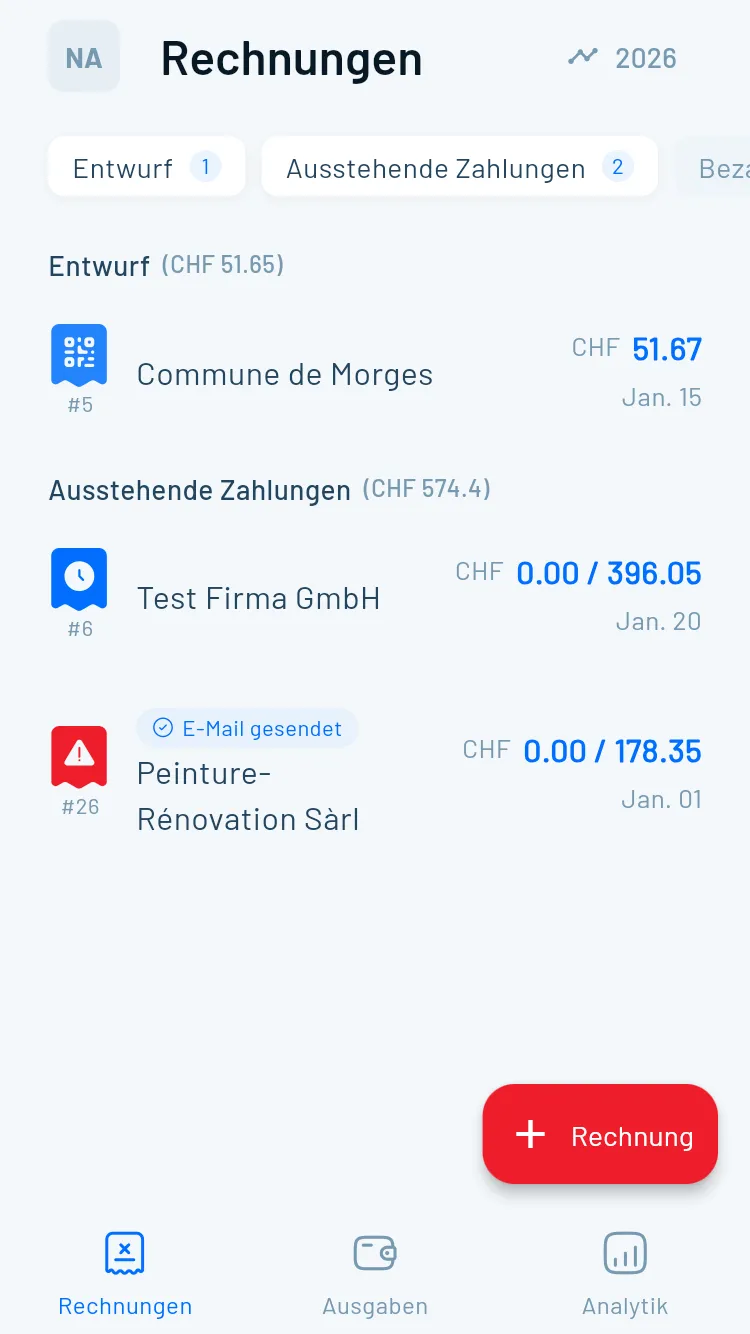
Jede Rechnung, die Sie versenden, ist ein Kontaktpunkt mit Ihren Kunden. Ein professionelles Logo auf Ihren Schweizer QR-Rechnungen sieht nicht nur gut aus – es schafft Vertrauen, beschleunigt die Zahlung und stärkt Ihre Marke jedes Mal, wenn ein Kunde sein E-Mail-Postfach öffnet.
Seit Oktober 2022 müssen Schweizer Unternehmen QR-Rechnungen verwenden. Während diese Standardisierung die Compliance sicherstellt, können Ihre Rechnungen dennoch Ihre einzigartige Markenidentität widerspiegeln. Magic Heidi macht das Hinzufügen Ihres Logos zu konformen Schweizer QR-Rechnungen einfach – in nur 30 Sekunden auf iPhone, Android, Mac, Windows oder im Web.
Diese Anleitung zeigt Ihnen genau, wie Sie Ihre Schweizer Rechnungen mit Ihrem Logo personalisieren und dabei die vollständige Konformität mit den Schweizer Zahlungsstandards wahren.
Warum ein Logo auf Schweizer QR-Rechnungen?
Ihr Logo ist nicht nur Dekoration – es ist ein strategisches Geschäftswerkzeug, das beeinflusst, wie Kunden Sie wahrnehmen, wie schnell sie zahlen und wie gut sie sich an Sie erinnern.
Professionelle Glaubwürdigkeit
Ihr Logo vermittelt sofort Professionalität. Wenn Kunden eine Rechnung mit Ihrem Branding erhalten, sehen sie ein etabliertes Unternehmen, nicht nur einen weiteren Freelancer.Schnellere Zahlungsabwicklung
Rechnungen mit Branding werden schneller bezahlt. Wenn Ihr Logo konsistent erscheint, erkennen Kunden Ihr Unternehmen sofort, ohne den Absender verifizieren zu müssen.Stärkere Markenwahrnehmung
Jede Rechnung ist eine Markenimpression. Wenn Sie 50 Rechnungen pro Jahr versenden, sind das 50 Gelegenheiten, Ihre Markenidentität zu stärken.Rechtliche Konformität mit persönlicher Note
Schweizer QR-Rechnungen haben strenge Anforderungen, aber Personalisierung ist erwünscht. Fügen Sie Ihr Logo hinzu und wahren Sie gleichzeitig die vollständige Konformität mit den Schweizer Zahlungsstandards.Anforderungen an Schweizer QR-Rechnungen verstehen
Was ist eine Schweizer QR-Rechnung?
Die Schweizer QR-Rechnung hat am 1. Oktober 2022 die traditionellen roten und orangen Einzahlungsscheine ersetzt. Jede Rechnung muss nun einen standardisierten QR-Code mit Zahlungsinformationen enthalten.
Der QR-Code misst im Ausdruck exakt 46 x 46 mm und trägt ein Schweizer Kreuz in der Mitte. Diese Standardisierung optimiert die Zahlungsabwicklung im gesamten Schweizer Bankensystem.
Pflichtangaben, die nicht geändert werden können
Schweizer QR-Rechnungen müssen enthalten:
- QR-Code (46 x 46 mm mit Schweizer Kreuz)
- Zahlteil mit strukturierten Daten
- Rechnungssteller-Informationen (Ihre Geschäftsangaben)
- Betrag (falls angegeben)
- Währung (CHF oder EUR)
- Referenznummer (falls zutreffend)
- Zusätzliche Informationen
Diese Elemente können nicht entfernt oder wesentlich verändert werden. Sie stellen sicher, dass Ihre Rechnungen reibungslos mit Schweizer E-Banking-Systemen funktionieren.
Wo Ihr Logo hingehört
Ihr Logo erscheint im Kopfbereich, getrennt von den Pflicht-Zahlungsinformationen. Diese Platzierung hält Ihre Rechnung konform und gibt Ihnen gleichzeitig volle Kontrolle über Ihr Branding.
Die wichtigste Regel: Überdecken Sie niemals den QR-Code. Platzieren Sie Ihr Logo im oberen Bereich, entfernt vom Zahlteil am unteren Ende.
Magic Heidi erledigt das automatisch. Wenn Sie Ihr Logo hinzufügen, positioniert die Software es korrekt für optimale Optik und gesetzliche Konformität.
Logo-Anforderungen und Best Practices
Befolgen Sie diese Spezifikationen, um sicherzustellen, dass Ihr Logo auf jeder Rechnung perfekt dargestellt wird – auf allen Plattformen, digital und gedruckt.
Dateiformat & Grösse
Verwenden Sie das richtige Format und die richtigen Dimensionen für optimale Darstellungsqualität auf allen Plattformen.
- PNG- oder JPG-Format (PNG empfohlen für Transparenz)
- Mindestens 400 Pixel breit
- Unter 512 KB Dateigrösse
- Mindestens 300 DPI für Druckqualität
Farbe & Design
Stellen Sie sicher, dass Ihr Logo professionell aussieht und in Rechnungsgrösse lesbar bleibt.
- RGB-Farbraum (nicht CMYK)
- Hoher Kontrast zum Hintergrund
- Einfaches, skalierbares Design
- Vermeiden Sie textlastige Logos
Qualitätscheckliste
Überprüfen Sie diese Elemente vor dem Hochladen, um beste Ergebnisse zu gewährleisten.
- Logo ist beim Verkleinern klar erkennbar
- Konsistent mit anderen Markenmaterialien
- Keine übermässigen transparenten Bereiche
- Standardmässiges Seitenverhältnis (quadratisch oder 2:1)
Schritt-für-Schritt: Logo ändern
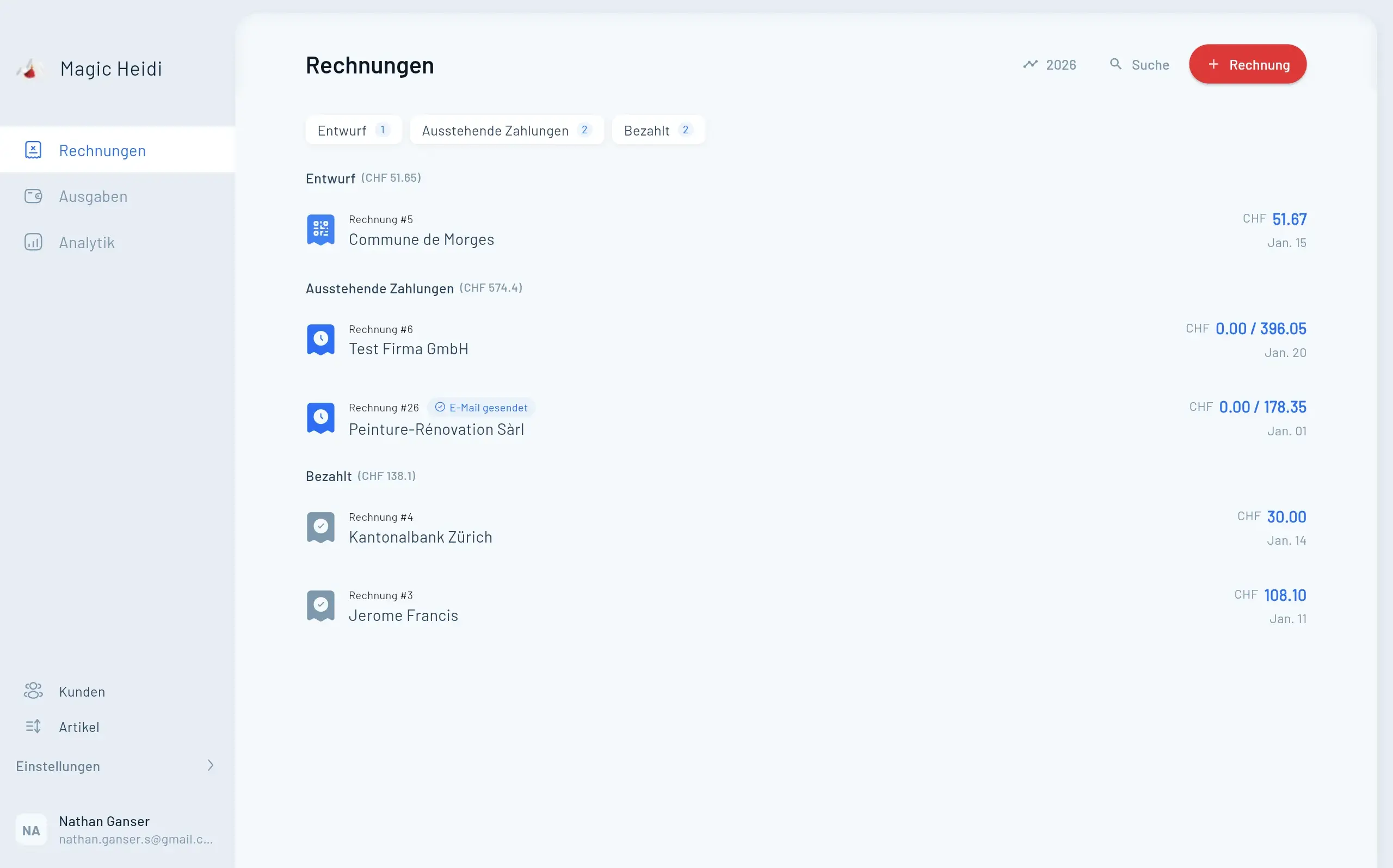
Befolgen Sie diese einfachen Schritte, um Ihr Logo zu Magic Heidi hinzuzufügen. Einmal hochladen – und es synchronisiert sich automatisch auf allen Geräten: iPhone, Android, Mac, Windows und Web.
Voraussetzungen
Bevor Sie beginnen:
- Halten Sie Ihre Logo-Datei bereit im PNG- oder JPG-Format
- Überprüfen Sie die Dateigrösse – sie sollte unter 512 KB liegen
- Stellen Sie sicher, dass die Dimensionen mindestens 400 Pixel breit sind
Für iPhone- und Android-Nutzer
Schritt 1: Öffnen Sie die Magic Heidi App auf Ihrem Mobilgerät.
Schritt 2: Tippen Sie auf das Einstellungen-Symbol (Zahnrad) in der unteren Navigationsleiste.
Schritt 3: Wählen Sie Rechnungseinstellungen aus dem Menü.
Schritt 4: Tippen Sie auf Firmenlogo oder Logo hochladen.
Schritt 5: Wählen Sie Aus Fotos auswählen, um auf die Fotobibliothek Ihres Geräts zuzugreifen.
Schritt 6: Durchsuchen Sie Ihre Dateien und wählen Sie Ihre Logo-Datei aus.
Schritt 7: Die App lädt Ihr Logo automatisch hoch und positioniert es. Sehen Sie die Änderung sofort in der Vorschau.
Schritt 8: Tippen Sie auf Speichern, um das Logo auf alle zukünftigen Rechnungen anzuwenden.
Ihr Logo erscheint nun auf jeder neuen Rechnung, die Sie erstellen. Frühere Rechnungen bleiben unverändert – nur neue Rechnungen zeigen das aktualisierte Logo.
Für Mac- und Windows-Nutzer
Schritt 1: Starten Sie Magic Heidi auf Ihrem Computer.
Schritt 2: Klicken Sie auf Einstellungen in der oberen Menüleiste (Mac) oder linken Seitenleiste (Windows).
Schritt 3: Navigieren Sie zu Rechnungsanpassung oder Branding.
Schritt 4: Klicken Sie auf die Schaltfläche Logo hochladen oder ziehen Sie Ihre Logo-Datei per Drag-and-Drop in den vorgesehenen Bereich.
Schritt 5: Wählen Sie Ihre Logo-Datei von Ihrem Computer aus.
Schritt 6: Sehen Sie sich die Logo-Platzierung auf einer auf dem Bildschirm angezeigten Musterrechnung in der Vorschau an.
Schritt 7: Passen Sie die Positionierung bei Bedarf an (Magic Heidi zentriert Logos normalerweise automatisch für optimales Erscheinungsbild).
Schritt 8: Klicken Sie auf Änderungen speichern oder Anwenden.
Das Logo wird sofort auf Ihre Rechnungsvorlage angewendet. Erstellen Sie eine Testrechnung, um das Endergebnis zu sehen.
Für Web-Plattform-Nutzer
Schritt 1: Melden Sie sich bei Magic Heidi unter app.magicheidi.com an.
Schritt 2: Klicken Sie auf Ihr Profilsymbol oder Einstellungen in der oberen rechten Ecke.
Schritt 3: Wählen Sie Rechnungseinstellungen aus dem Dropdown-Menü.
Schritt 4: Scrollen Sie zum Abschnitt Logo hochladen.
Schritt 5: Klicken Sie auf Datei auswählen oder ziehen Sie Ihr Logo direkt in den Upload-Bereich.
Schritt 6: Wählen Sie Ihr Logo aus dem Dateisystem Ihres Computers aus.
Schritt 7: Das Vorschaufenster zeigt Ihr Logo auf einer Rechnungsvorlage.
Schritt 8: Wenn Sie mit der Platzierung zufrieden sind, klicken Sie auf Speichern oder Logo aktualisieren.
Ihr Logo wird in Ihrem Konto gespeichert und synchronisiert sich automatisch auf allen Geräten, auf denen Sie Magic Heidi verwenden.
Automatische Synchronisation über Geräte hinweg
Einer der Vorteile von Magic Heidi: Ändern Sie Ihr Logo einmal, und es wird überall aktualisiert.
Laden Sie Ihr Logo auf Ihrem iPhone hoch, und es erscheint auf Ihrem Mac, Android-Tablet, Windows-PC und im Webbrowser. Kein mehrfaches Hochladen nötig, keine Sorgen um Versionskontrolle.
Diese Synchronisation erfolgt automatisch innerhalb von Sekunden und gewährleistet Konsistenz auf allen Plattformen.
Logo auf Rechnungen in der Vorschau ansehen
Überprüfen Sie immer, wie Ihr Logo aussieht, bevor Sie Rechnungen an Kunden senden. Erstellen Sie eine Testrechnung und prüfen Sie Platzierung, Grösse und Klarheit.
Vor dem Versand prüfen
Erstellen Sie eine Testrechnung, um die Logo-Platzierung und das Gesamterscheinungsbild in der Vorschau anzusehen.
Positionierung überprüfen
Stellen Sie sicher, dass Ihr Logo sich nicht mit Kundeninformationen oder dem QR-Code überlappt.
Druckqualität testen
Speichern Sie als PDF, um zu sehen, wie Ihre Rechnung im Ausdruck aussehen wird.
Anpassungen vornehmen
Passen Sie bei Bedarf Grösse oder Position Ihres Logos für optimale Darstellung an.
Vor dem Versand prüfen
Nachdem Sie Ihr Logo hochgeladen haben, erstellen Sie eine Testrechnung:
Schritt 1: Gehen Sie zu Rechnung erstellen oder Neue Rechnung.
Schritt 2: Füllen Sie Beispiel-Kundeninformationen und Positionen aus.
Schritt 3: Klicken Sie auf Vorschau, um die vollständige Rechnung mit Ihrem Logo zu sehen.
Schritt 4: Überprüfen Sie diese Elemente:
- Logo erscheint klar und in angemessener Grösse
- Logo überlappt sich nicht mit Kundeninformationen
- Logo ist korrekt im Kopfbereich ausgerichtet
- QR-Code bleibt am unteren Ende unverdeckt
- Gesamtlayout wirkt professionell
Schritt 5: Wenn alles gut aussieht, speichern Sie die Rechnung als PDF, um die Druckversion zu sehen.
Häufige Probleme beheben
Logo erscheint verschwommen oder pixelig
Ursache: Niedrige Auflösung oder kleine Dateidimensionen.
Lösung: Verwenden Sie eine höher aufgelöste Version Ihres Logos. Quelldateien sollten mindestens 400 Pixel breit sein und 300 DPI für Druckqualität aufweisen.
Wenn Sie nur eine kleine Logo-Datei haben, fragen Sie Ihren Designer nach einer grösseren Version oder verwenden Sie ein Bild-Upscaling-Tool (dies hat allerdings Grenzen).
Fehler "Datei zu gross"
Ursache: Ihre Logo-Datei überschreitet 512 KB.
Lösung: Komprimieren Sie Ihr Bild mit:
- TinyPNG (Online-Tool für PNG-Dateien)
- JPEG Optimizer (für JPG-Dateien)
- Bildbearbeitungssoftware wie Photoshop oder GIMP
Die meisten Logos sollten unter 100 KB liegen. Wenn Ihres deutlich darüber liegt, reduzieren Sie die Bildabmessungen oder speichern Sie mit niedrigeren Qualitätseinstellungen.
Fehler wegen falschem Dateiformat
Ursache: Sie versuchen, ein PDF, GIF oder anderes nicht unterstütztes Format hochzuladen.
Lösung: Konvertieren Sie Ihr Logo in PNG oder JPG:
- Verwenden Sie einen Online-Konverter (PDF zu PNG, etc.)
- Öffnen Sie es in Photoshop, GIMP oder Vorschau (Mac) und exportieren Sie als PNG/JPG
- Fragen Sie Ihren Designer nach einer PNG- oder JPG-Version
Logo wird nach dem Hochladen nicht angezeigt
Ursache: Browser-Cache oder Synchronisationsverzögerung.
Lösung:
- Seite aktualisieren oder App schliessen und erneut öffnen
- 30-60 Sekunden warten für die Synchronisation über Geräte hinweg
- Browser-Cache leeren, wenn Sie die Web-Plattform nutzen
- Andere Plattform ausprobieren (wenn es auf Mobilgeräten funktioniert, aber nicht auf dem Desktop, wurde das Logo erfolgreich hochgeladen – Cache muss nur geleert werden)
Wenn das Problem weiterhin besteht, kontaktieren Sie den Magic Heidi Support über die App oder Website.
Logo überlappt sich mit Rechnungsinhalt
Ursache: Logo-Datei enthält übermässigen transparenten Bereich oder ungewöhnliches Seitenverhältnis.
Lösung: Bearbeiten Sie Ihre Logo-Datei in einem Bildbearbeitungsprogramm:
- Transparenten Bereich zuschneiden um das Logo herum
- Logo zentrieren in einem Standard-Seitenverhältnis (quadratisch oder 2:1-Rechteck)
- Angepasste Datei erneut hochladen
Magic Heidi positioniert Logos basierend auf den Bildabmessungen, daher liefern saubere Dateien bessere Ergebnisse.
Erweiterte Anpassungstipps
Gehen Sie über das blosse Hinzufügen Ihres Logos hinaus. Schaffen Sie ein vollständig gebrandetes Rechnungserlebnis, das Ihr Unternehmen perfekt repräsentiert.
Markenfarben abstimmen
Passen Sie Ihr Rechnungsfarbschema an Ihr Logo an und schaffen Sie ein stimmiges Markenerlebnis.
- Vordefinierte Farbschemata wählen
- Eigene Hex-Farbcodes eingeben
- Kopfzeilen- und Akzentfarben anpassen
- Markenkonsistenz wahren
Richtige Vorlage wählen
Magic Heidi bietet mehrere Rechnungsvorlagen. Jede zeigt Ihr Logo anders, passend zu Ihrer Markenpersönlichkeit.
- Klassisch: Zentriertes Logo, formelles Layout
- Modern: Linksbündig, minimalistisches Design
- Kreativ: Fett mit farbiger Kopfzeile
- Verschiedene Vorlagen testen und die passende finden
Vorlagenvarianten erstellen
Bedienen Sie verschiedene Kundentypen mit angepassten Rechnungsvorlagen bei gleichzeitiger Wahrung Ihrer Kern-Markenidentität.
- Firmenkunden: Konservative Vorlage
- Kreativkunden: Mutige Vorlage
- Internationale Kunden: Vereinfachte Vorlage
- Vorlagen je nach Zielgruppe wechseln
Häufig gestellte Fragen
Wie oft kann ich mein Logo ändern?
So oft Sie möchten. Es gibt keine Begrenzung. Allerdings verwirren häufige Änderungen Kunden und verwässern die Markenwahrnehmung. Ändern Sie Ihr Logo nur bei einem Rebranding oder wesentlichen Markenaktualisierungen.
Wirkt sich eine Logo-Änderung auf alte Rechnungen aus?
Nein. Frühere Rechnungen bleiben unverändert. Nur neue Rechnungen, die nach der Logo-Änderung erstellt werden, zeigen das aktualisierte Logo.
Kann ich verschiedene Logos für verschiedene Kunden verwenden?
Nicht gleichzeitig. Magic Heidi verwendet ein Logo pro Konto. Wenn Sie verschiedene Logos benötigen, erwägen Sie separate Rechnungsvorlagen mit unterschiedlichem Branding zu erstellen, oder erstellen Sie ein vielseitiges Logo, das für alle Kunden funktioniert.
Was, wenn ich kein Logo habe?
Sie können Rechnungen ohne Logo erstellen. Sie sind trotzdem konform und professionell. Allerdings steigert selbst ein einfaches Logo (wie Ihre Initialen in einer schönen Schriftart) die Professionalität erheblich. Erwägen Sie kostenlose Logo-Maker wie Canva oder beauftragen Sie einen Designer auf Fiverr, wenn Sie bereit sind, eines zu erstellen.
Wird mein Logo korrekt gedruckt?
Ja, wenn Sie die Dateianforderungen befolgen (PNG/JPG, 400+ Pixel breit, 300 DPI). Magic Heidi generiert druckfertige PDFs, die die Bildqualität erhalten. Sehen Sie sich das PDF immer in der Vorschau an, bevor Sie es versenden, um zu überprüfen, wie Ihre Rechnung im Ausdruck aussehen wird.
Kann ich neben dem Logo weitere Branding-Elemente hinzufügen?
Ja. Magic Heidi ermöglicht es Ihnen, Kopfzeilenfarben, Akzentfarben, Fusszeilen-Text (fügen Sie Ihren Slogan oder Tagline hinzu) und Schriftauswahl (bei einigen Vorlagen) anzupassen. Erkunden Sie die Rechnungsanpassungseinstellungen, um alle Branding-Optionen zu entdecken.
Ihre professionellen Rechnungen beginnen jetzt
Das Hinzufügen Ihres Logos zu Schweizer QR-Rechnungen dauert 30 Sekunden, hinterlässt aber einen bleibenden Eindruck. Professionelles Branding schafft Vertrauen, beschleunigt Zahlungen und stärkt Ihre Geschäftsidentität mit jeder versendeten Rechnung.