Swiss QR-bill

Add a QR payment slip (Swiss QR-bill) to your invoice
in seconds

Already have an invoice PDF and just need the Swiss QR-bill payment slip attached so customers can scan and pay? Upload your existing PDF and append a compliant QR payment part—without changing your invoicing workflow.

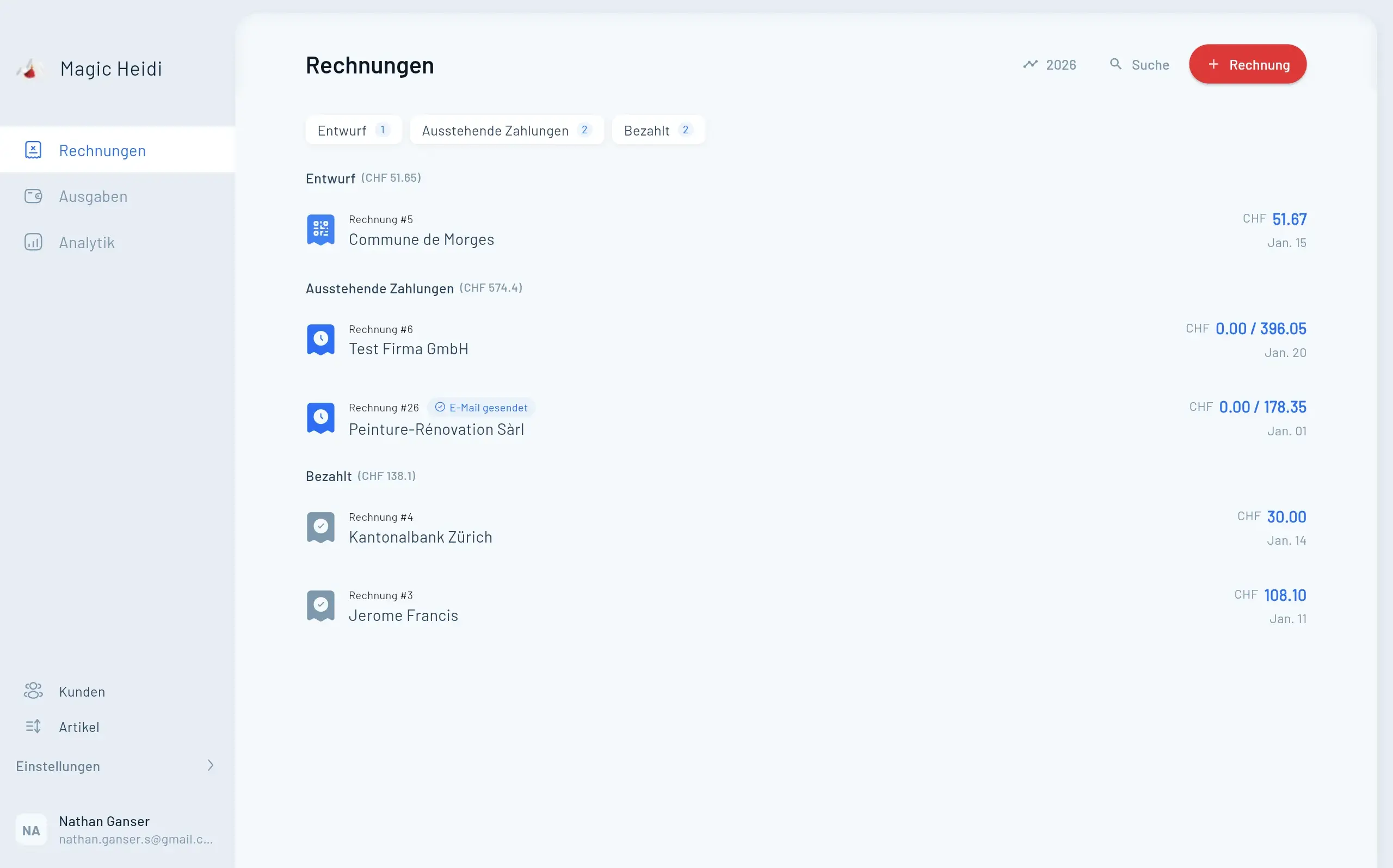
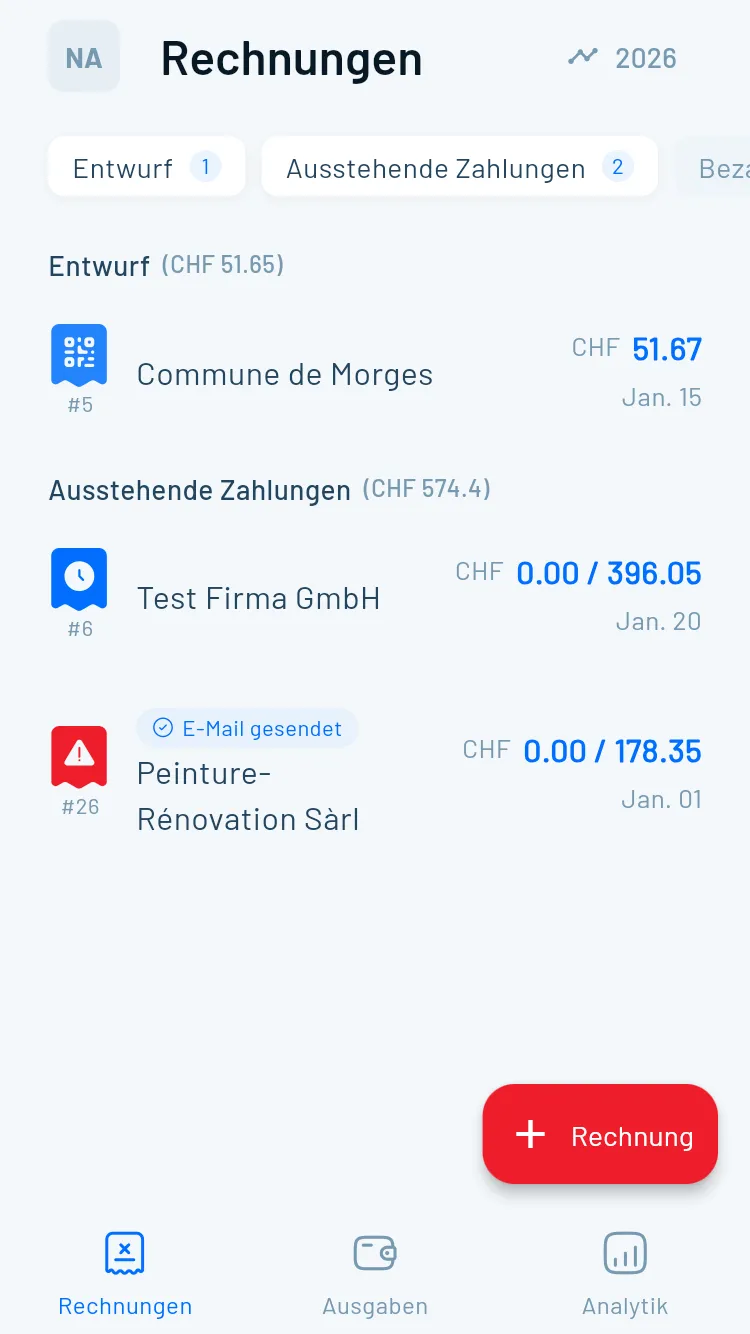
Invoice list and QR-bill ready invoices

Turn any invoice PDF into a
QR-payable invoice

If you invoice in Switzerland, customers increasingly expect a QR code they can scan in their banking app. Adding a QR payment part reduces manual typing, avoids errors, and helps you get paid faster—while keeping your existing invoice layout.

🧾
Keep your current invoice templateWord, Excel, Google Docs, Canva, or exports from other tools.
📱
Make paying effortlessCustomers scan the QR and pay in seconds (CHF or EUR).
Swiss QR-bill compliant outputProper payment part layout + data format for reliable processing.
How it works

Upload → generate → download
(that’s it)

A simple workflow for freelancers, SMEs, associations, and fiduciaries who want QR-bill compatibility without migrating their invoicing system.

  • 📤
    Upload your invoice PDF

    Start from the PDF you already have (single or multi-page).

  • 🧾
    Add QR-bill payment details

    Creditor, IBAN/QR-IBAN, currency, amount, reference (optional).

  • 📥
    Download the updated PDF

    Your original invoice with the QR payment slip appended.

  • ✉️
    Send or print

    Payable via scan or manual entry—email or paper.

Invoices
  • Invoice #3

    Magic Heidi

    CHF 500

    Jan 29

  • Invoice #2

    Webbiger LTD

    CHF 2000

    Jan 24

  • Invoice #1

    John Doe

    CHF 600

    Jan 20

Works with your existing PDFs

Keep your design—add the
Swiss QR payment part

Take the invoice you already created (any tool that exports PDF) and append a QR payment slip that follows the Swiss QR-bill standard. The result is a ready-to-send PDF that’s easy to pay and reduces typing errors.

Invoice PDF on mobile with QR-bill payment slip

Add a QR payment slip (Swiss QR-bill) to your invoice

Already have an invoice PDF and just need the Swiss QR-bill payment slip attached so customers can scan and pay? You’re in the right place.

With Magic Heidi’s “add QR slip to invoice” tool, you can take the invoice you already created (Word, Excel, Google Docs, Canva, your accounting tool—anything that exports a PDF), then append a QR payment part that follows the Swiss QR-bill standard.

Result: a ready-to-send PDF that’s easy to pay, reduces typing errors, and helps you get paid faster.

Also searched as: add QR slip to invoice, Swiss QR invoice, Swiss QR-bill payment slip, QR-Einzahlungsschein, Zahlteil QR-Rechnung, QR-Rechnung auf Rechnung drucken, ajouter un bulletin QR à une facture, facture QR Suisse, bulletin de versement QR.


Why add a QR-bill payment slip to an existing invoice?

If you invoice in Switzerland, the QR-bill isn’t “nice to have”—it’s the modern standard. The legacy orange/red payment slips were phased out and no longer accepted since October 1, 2022. Many customers now expect a QR code they can scan with their banking app.

Adding a QR payment part to your existing invoice PDF is ideal if:

  • You like your current invoice layout and don’t want to rebuild templates elsewhere.
  • You invoice occasionally (freelancers, small landlords, associations, clubs).
  • You’re helping multiple clients (fiduciaries/accountants) and need a quick, compliant workflow.
  • You don’t want a full invoicing system—just a way to make a PDF invoice payable via QR.

How it works (upload → generate → download)

1) Upload your invoice PDF

Start with the invoice you already have—typically a 1-page PDF, but multi-page invoices can work too.

2) Add your payment details (QR-bill data)

You provide the information needed to generate the Swiss QR-bill payment part, such as:

  • Creditor name and address
  • IBAN or QR-IBAN
  • Currency (CHF or EUR)
  • Amount (depending on your preference/workflow)
  • Reference type (if applicable)

3) Download a new PDF with the QR payment part appended

You receive an updated file: your invoice + QR payment slip. Send it by email, or print it—your customer can pay by scanning the QR code or by entering the details manually.

This is the main benefit: you keep your existing invoice design and process, but gain Swiss-standard QR payment compatibility.


What you need to add a QR payment slip (requirements checklist)

To generate a valid Swiss QR-bill payment part, you’ll need a few core details. The exact requirements can vary depending on whether you use a reference (e.g., for automated reconciliation), but these are the common basics.

Creditor details (who gets paid)

  • Name / company name
  • Address
    • Use a consistent, clear format (the QR standard supports structured addresses; what matters most is that the data is complete and matches what your bank expects).

Tip: If the creditor name differs from the account holder name at the bank, payments can fail or require manual clarification. Keep these aligned wherever possible.

Account: IBAN or QR-IBAN (what’s the difference?)

You’ll typically use one of these:

  • IBAN (standard Swiss IBAN): widely used for QR-bills—often enough for simple invoices.
  • QR-IBAN: used specifically for QR-bills that include a QR reference (for structured reconciliation).

If you’re not sure which one you have, check your bank account details or ask your bank. Many businesses can issue QR-bills with a normal IBAN, but QR-IBAN may be required if you rely on a reference-based workflow.

Currency: CHF or EUR

Swiss QR-bills are commonly issued in CHF or EUR. If you invoice in another currency, you’ll typically need a different payment method or a different invoice setup.

Amount: fixed or left open (depending on your use case)

Some businesses prefer to generate the QR payment part with:

  • a fixed amount (most common for standard invoices), or
  • no preset amount (useful if the payer may enter an amount manually)

If your workflow requires an “amount left open” QR-bill, verify that your chosen setup supports it and ensure your invoice text clearly states what the customer should pay.

Reference type (optional but useful)

Depending on your payment reconciliation needs, you may choose:

  • No reference (simpler; good for low volume)
  • QR reference (often used with QR-IBAN)
  • Creditor reference (SCOR) (common in some B2B contexts)

If you’re unsure, start simple (no reference) unless you need automated matching in your accounting.


Two ways to include the QR payment part: same page vs extra page

Businesses usually want one of these:

Option A: Add QR slip as an extra page (most compatible)

Your invoice stays untouched and the payment part is appended as a new page. This is great when:

  • your existing invoice already uses the bottom of the page,
  • you don’t want to adjust spacing, or
  • you want predictable output across different invoice designs.

Option B: Integrate the QR slip into the invoice layout (when space allows)

If your invoice template has free space in the correct area, you may be able to include the payment part on the same page. This is popular for printed invoices, but it’s also where layout problems can happen (footers, page numbers, legal text, etc.).

Practical recommendation: If you’re starting from an existing PDF, appending a new page is typically the fastest and safest approach.


What “compliant Swiss QR-bill” means (and why it matters)

A Swiss QR-bill is more than “a QR code on a PDF.” The payment part follows a defined standard (often referenced alongside ISO 20022 payment messaging), including:

  • required fields and formatting rules,
  • a specific payment part layout (with receipt and payment section),
  • QR code data structure so banking apps can parse it reliably.

Compliance matters because it reduces:

  • failed payments,
  • manual correction by the payer,
  • bank processing issues, and
  • reconciliation errors.

If you issue invoices in Switzerland, a properly generated QR-bill payment part helps you look professional and makes paying genuinely easier for your customers.


Common problems this solves (real-world scenarios)

“My invoice is already designed. I just need the payment part.”

Many freelancers and micro-businesses have a well-designed invoice template in Word/Google Docs. Rebuilding it in a new tool just for QR-bill support is frustrating.

Appending the QR payment slip lets you keep:

  • your branding and layout,
  • your existing process,
  • your preferred document editor.

“Customers keep mistyping bank details.”

With a QR-bill, customers can scan and pay. That typically means fewer errors than manual entry (especially on mobile).

“We invoice irregularly and don’t want another subscription.”

If you only send a few invoices per month (or per quarter), a quick “upload → add QR → download” workflow is often the simplest solution.

“I’m an accountant and need a fast, repeatable process for clients.”

A standardized way to add a QR payment slip can save time—especially when clients send invoices in different formats.


Step-by-step: how to prepare your invoice PDF for best results

Even though the tool handles the QR payment part, your input invoice can affect the final output.

1) Leave margins and avoid critical content at the very bottom

If your invoice has:

  • a large footer,
  • banking details block,
  • legal terms,
  • or signatures
    …consider leaving extra white space or plan to append the QR payment slip as a separate page.

2) Ensure your creditor details are consistent everywhere

If your invoice text shows “ACME GmbH” but the bank account holder is “ACME Consulting GmbH,” you may trigger manual checks. Consistency improves payment success.

3) Keep the invoice total clear (even if the QR has no preset amount)

If you leave the amount open in the payment part, your invoice should clearly state:

  • total amount due,
  • VAT (if applicable),
  • payment term,
  • and any partial payment rules.

4) Use black-on-white, print-friendly PDFs

QR-bills are designed to work in black & white printing. Avoid placing the payment part on a dark background or using heavy compression that could impact QR readability.


Add a QR slip to your invoice: who this is best for

Freelancers & sole proprietors

You need Swiss-standard payments without spending time on invoicing system migration.

SMEs issuing invoices from different systems

You might have a mix of:

  • ERP-generated invoices,
  • custom PDFs,
  • exported documents from older tools.

Appending a QR payment part standardizes payment without replatforming.

Associations, clubs, and small landlords

A QR-bill payment part makes it simpler for members/tenants to pay dues or rent—especially when they pay by mobile banking.

Fiduciaries and accountants

You can help clients become QR-bill-ready quickly, even when they don’t use the same software.


FAQ: Adding a Swiss QR-bill payment slip to an invoice

Is a Swiss QR invoice mandatory since October 1, 2022?

The Swiss QR-bill became the standard and the legacy payment slips were discontinued as of October 1, 2022. In practice, if you want customers in Switzerland to pay via the standardized payment part, you should use a QR-bill-compatible setup.

Can I add the QR payment part to an existing PDF invoice?

Yes—this is exactly the use case behind “add QR slip to invoice.” You keep your original PDF invoice and attach a QR-bill payment part so it becomes easy to pay.

Do I need a QR-IBAN or will a normal IBAN work?

It depends on whether you use a reference type that requires QR-IBAN (commonly for QR references). Many QR-bill setups work with a normal IBAN, but if you need structured references for automated reconciliation, you may need QR-IBAN. If unsure, ask your bank which account details are intended for QR-bill usage.

Can invoices be issued in CHF and EUR?

Swiss QR-bills are typically issued in CHF or EUR. If you invoice in other currencies, you’ll usually need an alternative payment method.

Can the QR payment part be integrated on the same page instead of added as an extra page?

Often yes—but it depends on your invoice layout and available space. If your PDF already has content near the bottom, adding the QR slip as an extra page is safer and avoids layout collisions.

What must match to avoid rejected or misrouted payments?

At minimum:

  • creditor name and address should be complete and consistent,
  • the IBAN/QR-IBAN must be correct,
  • reference (if used) must match the expected format.

When in doubt, keep the creditor/account holder naming consistent with what your bank uses.

Can my customer still pay manually if they don’t scan the QR code?

Yes. Swiss QR-bills include human-readable payment details so payers can type them in manually if they prefer.

Is the QR code valid if I print it in black & white?

Generally, yes—QR-bills are designed to be printable and scannable in black & white. The key is to avoid low-quality printing, heavy blurring, or resizing/distortion that could make the QR unreadable.

If you try to place the QR payment part on the same page, it may overlap with existing content. In that case, appending the QR payment slip as a new page is typically the simplest fix.

Can I use this for invoices sent by email (not printed)?

Yes. Many payers scan directly from their screen with a banking app (or use built-in “scan” features). For best results, ensure the QR code is clear and not compressed.

Is it safe to scan QR codes on invoices?

Use trusted banking apps and built-in QR scanners where possible. As with any payment method, payers should verify the payee and amount before confirming.

Can I add a QR-bill payment slip for partial payments or deposits?

You can handle this by generating the QR payment part for the deposit amount and clearly labeling the invoice (e.g., “Deposit 30%”). For more complex scenarios (multiple installments), consider issuing separate invoices or using reference-based reconciliation.


Make your invoice easier to pay (and more Swiss-compliant)

If you already have an invoice PDF, you don’t need to rebuild your invoicing workflow just to support the Swiss QR-bill.

Add a QR payment slip to your invoice and send customers a document they can pay in seconds—by scanning the QR code or entering the details manually.

Ready to add a Swiss QR-bill payment slip to your invoice?

Use the tool now: Upload your invoice PDF → generate the QR payment part → download the updated PDF.

Want to generate QR invoices from scratch going forward?

If you’re looking for more than a one-off PDF update, Magic Heidi can also help you manage invoicing end-to-end—so every invoice is ready to send, track, and get paid.

CTA: Add the QR slip to your invoice now, then explore Magic Heidi invoicing when you’re ready to streamline the whole process.


SEO/website note (for site owners): fix the /en/ 404 before it costs rankings

If /en/add-qr-slip-to-invoice returns a 404 while /add-qr-slip-to-invoice works, implement one of the following:

  • publish the English page at the /en/ path, or
  • add a 301 redirect to the canonical URL, and
  • ensure consistent canonical tags + hreflang across EN/DE/FR/IT.

This prevents lost traffic and avoids indexing issues for “add qr slip to invoice” queries.

Ready to add a Swiss QR-bill payment slip
to your invoice PDF?

Upload your invoice PDF, generate the QR payment part, and download the updated file—fast, compliant, and easy for customers to pay.